

Facebook Messenger is a widely used app for instant communication, but over time, it stores temporary data called “cache” on your device. This cache includes emojis, media, and images from past chats, making the app load faster. However, as the cache builds up, it can take up storage space and slow the app down. Clearing the Messenger cache is a quick and easy way to boost performance and free up space without deleting your conversations.
In this article, we’ll explore how to clear Messenger cache across various devices, including Android, iPhone, web browsers, macOS, and Windows.
What Is Cache, and Why Should You Clear It?
Cache is a temporary storage mechanism used to save frequently accessed files like images and media. For Messenger, cache helps the app load previously viewed content faster. However, an overfilled cache can lead to:
- Reduced performance: Slower loading speeds and app lag.
- Storage issues: Accumulated cache occupies valuable device storage.
- Temporary glitches: Corrupted cache files may cause unexpected errors.
By clearing your Messenger cache, you refresh the app’s data and improve its functionality without affecting your saved messages.
How to Clear Facebook Messenger Cache on Android
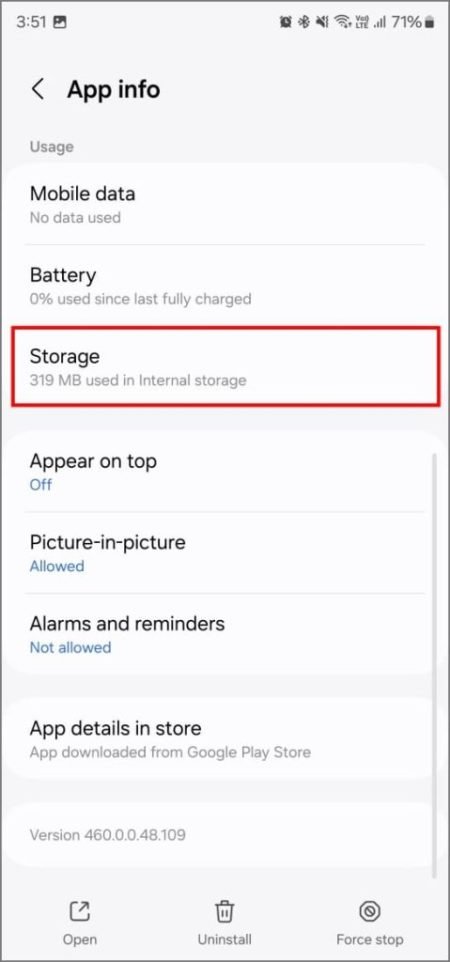
Clearing the Messenger cache on Android is simple and doesn’t require uninstalling the app. Follow these steps:
- Open the Settings app on your Android device.
- Navigate to Apps or Apps & notifications, then select See all apps.
- Locate and tap on Messenger.
- Choose Storage & cache.
- Tap Clear cache.
This process deletes the temporary files stored locally on your Android device, ensuring smoother app performance.


How to Clear Facebook Messenger Cache on iPhone
Unlike Android, iOS does not have a built-in option to clear an app’s cache directly. Instead, you can use one of the following methods:
Method 1: Uninstall and Reinstall Messenger
- Long-press the Messenger app icon.
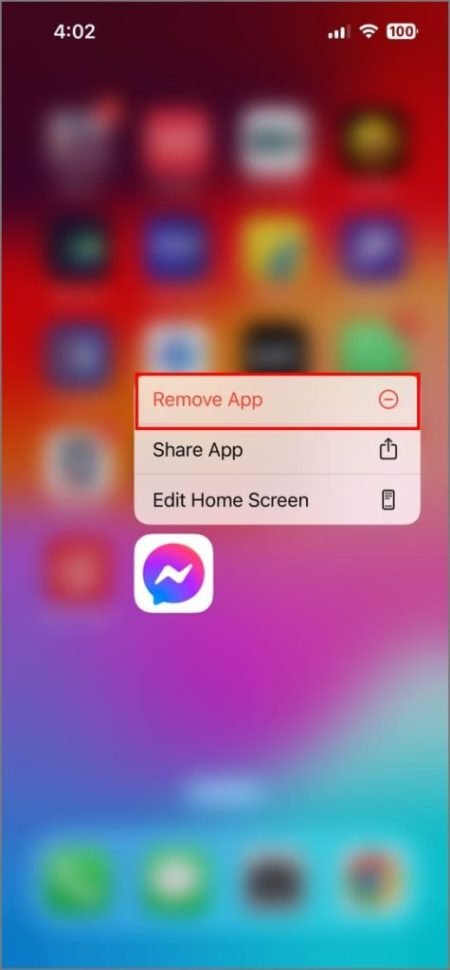


- Tap Remove App, then choose Delete App.
- Reinstall Messenger from the App Store.
This removes the cache along with the app and allows you to start fresh when you reinstall it.
Method 2: Offload the Messenger App
If you want to clear storage but retain app data, try offloading:

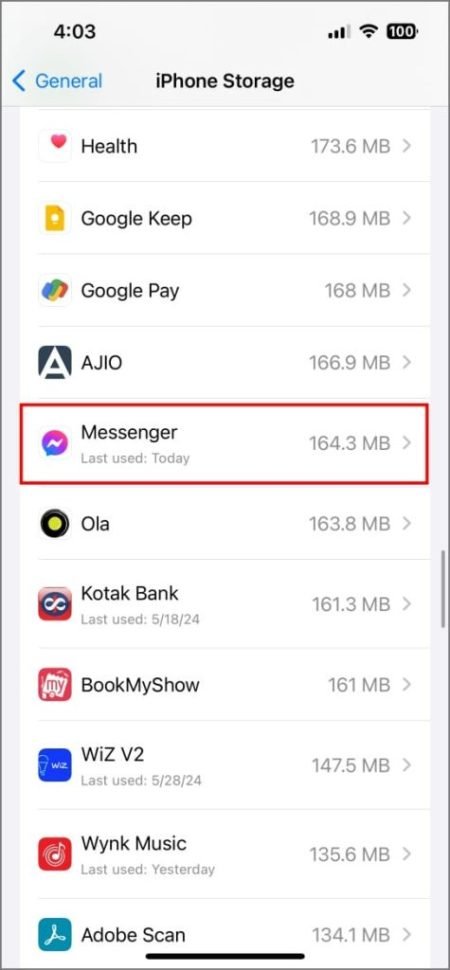

- Open Settings > General > iPhone Storage.
- Select Messenger.
- Tap Offload App.
When you reinstall the offloaded app, it restores essential data without the old cache.
How to Clear Facebook Messenger Cache on Browsers
If you use Facebook Messenger on a browser, you can clear its cache directly through browser settings.
For Chrome
- Open Messenger’s website in Chrome.
- Click the padlock or settings icon next to the address bar.
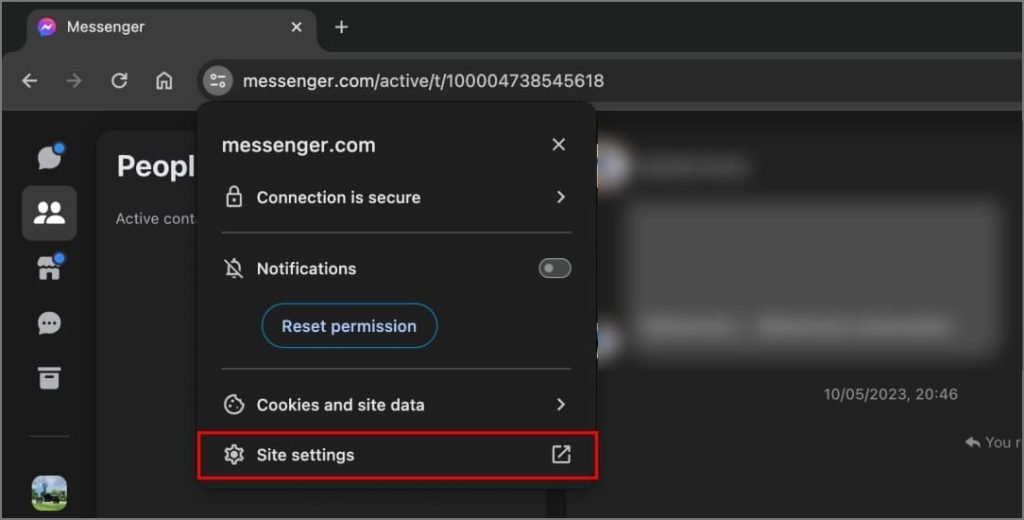
- Select Site Settings > Clear Data, then click Delete.
For Safari
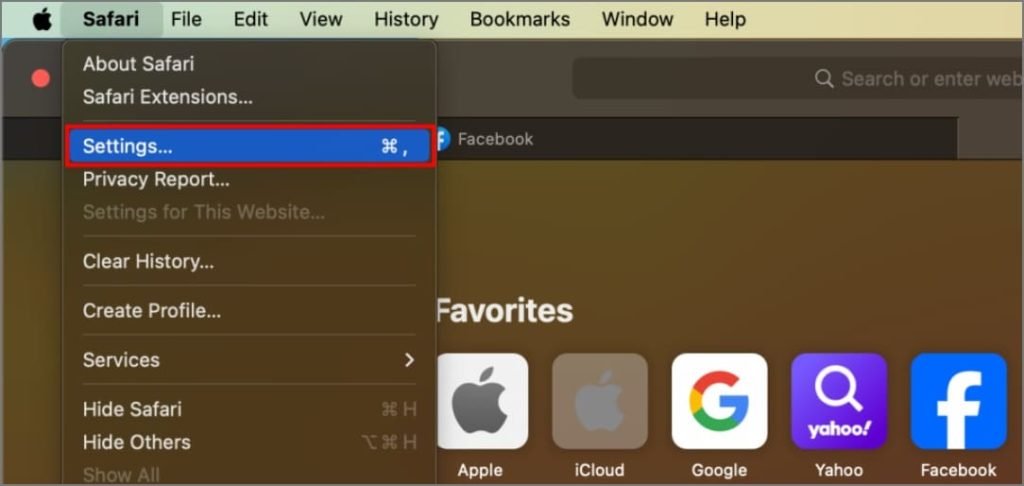
- Open Safari and go to Safari > Settings.
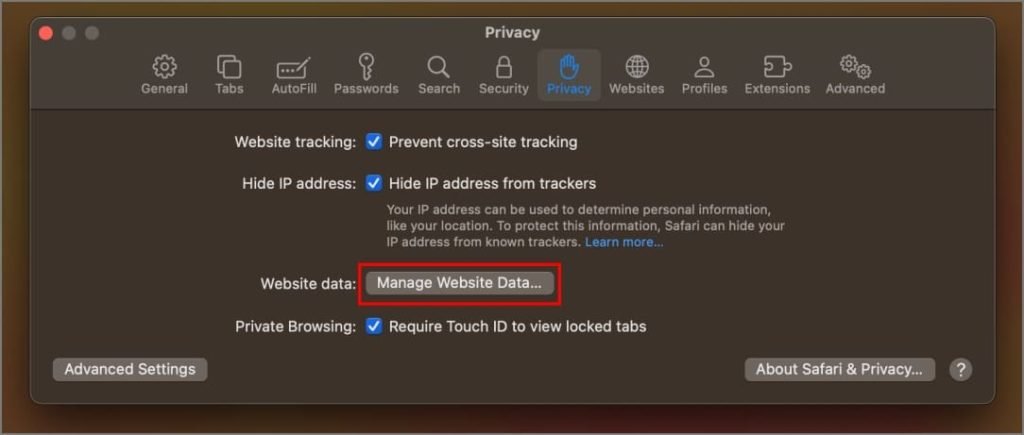
- Navigate to Privacy > Manage Website Data.

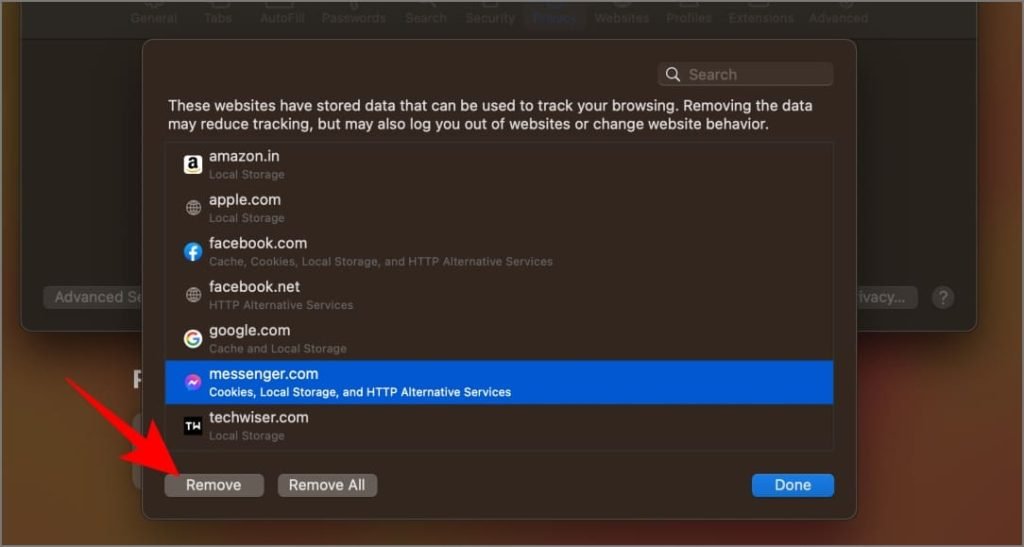
- Find Messenger, select it, and click Remove.

This process clears browser-specific cache without impacting the app on other devices.
How to Clear Facebook Messenger Cache on Mac
If you use Messenger on macOS, clearing cache requires uninstalling the app or using a third-party tool.
Uninstall and Reinstall Messenger
- Quit Messenger and open Finder > Applications.
- Right-click Messenger and select Move to Trash.
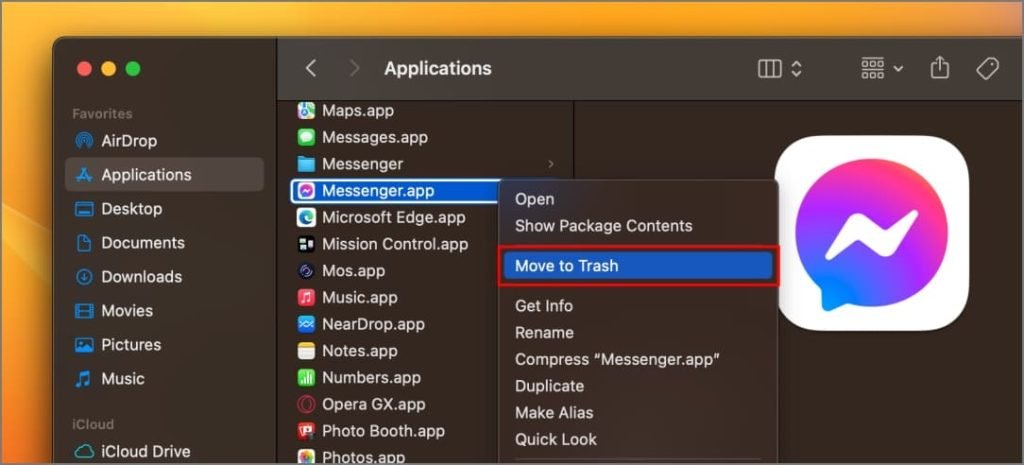
- Empty the Trash and reinstall Messenger from the official site.

Use a Third-Party App (e.g., CleanMyMac X)
- Open CleanMyMac X and select System Junk.
- Run a scan and review User Cache Files.
- Locate Messenger’s cache and click Clean.

Third-party tools are especially useful for advanced cleanup. Ensure the app is from a trusted source.
How to Clear Facebook Messenger Cache on Windows
Windows users can clear Messenger cache manually or by reinstalling the app.
Uninstall and Reinstall Messenger
- Open the Start menu, then navigate to All Apps.
- Right-click Messenger, select Uninstall.

- Reinstall Messenger from the Microsoft Store.
Manually Delete Cache Files
- Press Windows + R to open the Run dialog box.
- Enter %localappdata%\Packages and hit Enter.
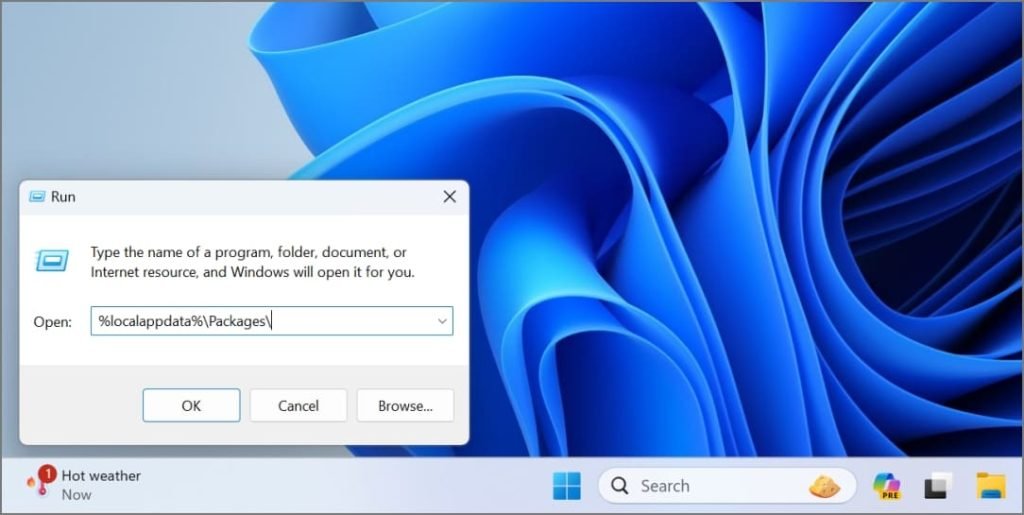
- Open Facebook.[random string of letters and numbers].

- Navigate to the LocalCache folder and delete its contents.
Manual deletion may log you out of Messenger, so be prepared to re-enter your credentials.
Conclusion: Keep Messenger Running Smoothly
Clearing Facebook Messenger’s cache is an easy way to optimize performance, free up storage, and resolve temporary glitches. Whether you’re using Android, iOS, a browser, macOS, or Windows, regular cache clearing ensures a seamless messaging experience.
Take the time to declutter your devices and maintain efficiency by removing unnecessary cached files.
Frequently Asked Questions
1. Does clearing cache delete Messenger conversations?
No, clearing cache only removes temporary files stored locally. Your conversations are safely stored on Meta’s servers.
2. Can I clear Messenger cache directly on iPhone?
iOS does not have a direct cache-clearing feature. However, uninstalling and reinstalling Messenger or offloading the app achieves similar results.
3. Is it safe to use third-party apps to clear cache on Mac?
Yes, trusted apps like CleanMyMac X are safe for clearing cache. Always download such apps from reputable sources.
4. Will clearing Messenger’s cache affect other apps?
No, clearing Messenger’s cache only impacts the Messenger app. Other apps remain unaffected.
5. How often should I clear the Messenger cache?
It depends on usage. Consider clearing it every few weeks or when you notice slower performance or excessive storage consumption.