

Data loss hits when you least expect it. In modern business environments, storage hardware serves as the nervous system of daily operations. Whether you manage design blueprints, logistical databases, or marketing assets, everything relies on local or external storage. However, many professionals overlook the early technical warnings of hardware deterioration. Understanding the mechanics of a dying drive can save your business from costly downtime and irreversible data catastrophes.
When your business data goes missing or storage hardware fails, choosing the right strategy determines your success. Fortunately, advanced utility applications allow modern teams to bridge the gap between technical hardware failure and seamless software data retrieval.
Technical Indicators of a Dying Internal HDD
An internal hdd relies heavily on high-speed moving mechanical parts to read and modify data. Inside the metallic casing, magnetic platters spin at thousands of revolutions per minute while read/write head assemblies hover mere nanometers above the delicate surface. Because of this mechanical nature, physical wear and tear will inevitably take place over time.
To prevent total catastrophic failure, professionals must actively watch for two primary hardware red flags:
- The Accumulation of Bad Sectors: These anomalies are tiny clusters of data storage space on the magnetic platter that become completely unresponsive to standard read or write commands. As these damaged blocks accumulate over time, your operating system will repeatedly struggle to access core system files. Consequently, this bottleneck results in sudden computer freezes, unexpected application crashes, or the notorious Blue Screen of Death (BSOD).
- Unusual Acoustic Noises: Pay close attention to any strange physical sounds originating from your computer tower or laptop chassis. If you hear rhythmic clicking, grinding, or whirring sounds, your storage drive is undergoing a severe mechanical breakdown. This critical issue, frequently termed the “clicking of death,” indicates that the read/write head is failing to position itself correctly on the track. Therefore, you must act immediately before the head physically scratches the magnetic platter, which causes permanent, unrecoverable data destruction.
How SSD Failure Differs from Internal HDD Degradation
Conversely, solid-state drives lack physical moving parts, meaning they do not emit warning sounds like a clicking hdd. Instead, SSD degradation manifests through silent technical errors. For example, you might experience sudden read-only drive lockouts, frequent file saving errors, or a complete failure to boot into the operating system. Furthermore, as the underlying NAND flash memory chips reach their maximum write cycles, the drive controller chips can suddenly fail without a single acoustic warning. Thus, understanding these silent symptoms is vital for maintaining modern office workstations.
Recognizing Instability in Your External Hard Disk HDD
Many businesses expand their local storage capacity or safeguard essential operational backups by regularly deploying an external hard disk hdd. While these portable drives offer remarkable convenience for hybrid teams, their constant mobility exposes them to unique physical and technical vulnerabilities. Frequent transport, accidental desk bumps, and sudden cable disconnections drastically increase the probability of severe file corruption.
An early, definitive sign of external drive instability involves a massive drop in read and write speeds. If transferring a simple spreadsheet or PDF document takes hours to complete, the drive mechanism is likely struggling with internal hardware error correction loops.
Another clear red flag occurs when your operating system prompts you to format the drive immediately upon connection. This frustrating event happens because the partition structure has suddenly turned into a “RAW” format, rendering the master file table completely unreadable whether it was originally formatted in NTFS, FAT32, or exFAT.
Moreover, random device disconnections during active file transfers suggest that either the internal bridge chip or the physical connector port is degrading. If folders start disappearing entirely, or if critical files become unopenable without any user intervention, your device is on the verge of complete operational failure.
Deploying PandaOffice Drecov Data Recovery Software for Complete File Restoration
For enterprises and professional environments where data loss directly translates to costly operational downtime, relying on primitive tools is simply not an option. This is exactly where PandaOffice Drecov Data Recovery Software establishes itself as an industry-leading solution. Engineered with a sophisticated dual-scan architecture, this professional software boasts an exceptional 99.8% data recovery success rate across thousands of logical data loss scenarios.
Whether an administrative employee accidentally empties the Windows Recycle Bin, formats a critical project partition, or encounters a sudden RAW drive error, the software provides a seamless, risk-free path to file restoration. It fully supports the retrieval of over 2,000 distinct file types, spanning complex CAD drawings, database files, high-resolution media formats, and essential office documents.
Furthermore, the software places an absolute premium on data safety. By operating in a strict, 100% secure read-only running mechanism, it ensures that the software will never overwrite or alter your original storage blocks during execution. Users can utilize the convenient file filtering features to sort through scanned assets by type, size, or modification date. Additionally, the platform provides completely free scanning and unlimited file previews before any recovery commitment. This feature allows IT managers to verify file integrity and check visual quality beforehand.
Step-by-Step Guide to External Hard Disk Recovery
To maximize the capabilities of your data rescue tool and guarantee a flawless file restoration process, implement the following tactical procedure:
Step 1. Target and Scan the Volume.
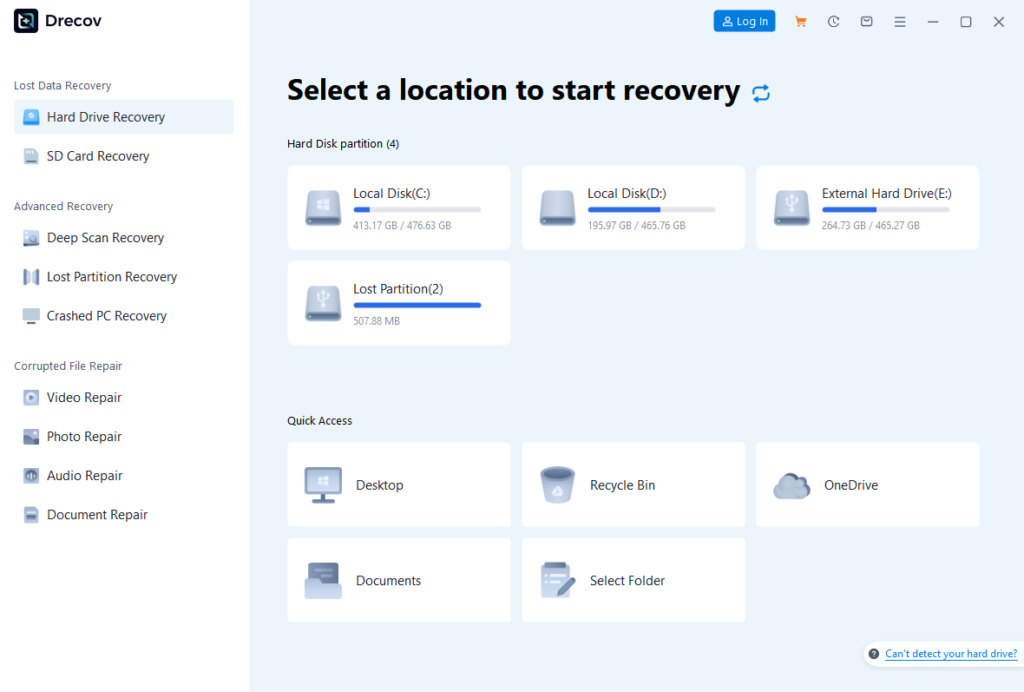
Connect your external drive to a high-speed USB port. Select the target drive letter from the intuitive interface dashboard and initiate the Deep Scan mode to thoroughly analyze fragmented storage clusters.
Step 2. Filter Your Discovered Files.
Utilize the dynamic file filtering options to isolate specific extensions like documents, photos, or video archives.

Step 3. Preview Recoverable Assets.
Double-click on individual files to utilize the unlimited preview function, verifying their structural integrity before extraction.
4.Securely Export Reconstructed Data.

Select all the verified files you wish to reclaim. Click the “Recover” button and designate a safe destination directory on a completely different local drive or secondary network storage array.
Proactive Maintenance: Shielding Storage Assets from Future Failure
While having a professional enterprise software solution provides immense peace of mind, implementing proactive hardware habits minimizes the probability of future digital emergencies.
First, always utilize the “Safely Remove Hardware and Eject Media” taskbar command before physically disconnecting any external device. This simple action forces the host operating system to completely flush its volatile write caches and safely parks the mechanical drive heads away from the active data recording zone.
Second, utilize built-in S.M.A.R.T. diagnostic tools once a month to actively monitor critical hardware health attributes. Pay close attention to parameters such as Reallocated Sectors Count, Current Pending Sector Count, and drive temperature thresholds.
Finally, enforce a strict “3-2-1” backup strategy within your corporate workflow:
- Maintain at least three separate copies of your operational data.
- Store those copies on two entirely different storage media types .
- Keep at least one copy, stored in a completely separate location or in a secure cloud repository
By pairing disciplined physical handling habits with advanced file restoration utilities like PandaOffice Drecov Data Recovery Software, you can ensure that your critical operational data remains completely secure, accessible, and resilient against unexpected hardware failures.