


Switching between app windows on a Mac is essential for multitasking, especially if you often work with multiple windows of the same app, such as Safari, Chrome, or Pages. While it may initially seem tricky, macOS offers numerous ways to seamlessly navigate between open windows—whether through keyboard shortcuts, trackpad gestures, or customizable features like Hot Corners.
This guide explores all the techniques to help you optimize your workflow and manage your windows like a pro.
1. Switch Between Windows on Mac Using Keyboard Shortcuts
Keyboard shortcuts are the fastest and most efficient way to toggle between windows on your Mac. Here’s how to make the most of them:
Using Command + ` Shortcut
The Command + ` (tilde) shortcut is perfect for cycling through multiple windows of the same app.
- Open several windows of an app (e.g., Safari).
- Hold the Command key and press the ` (tilde) key repeatedly to cycle through windows.

- To cycle in reverse, use Command + Shift + `.
- Release the Command key to switch to your selected window.
Pros:
- Quick and effective for non-minimized windows.
Cons:
- Does not work with minimized windows or across multiple Spaces.
Fix or Change the Shortcut
If the Command + ` shortcut doesn’t work, it might have been changed. You can confirm or update it as follows:
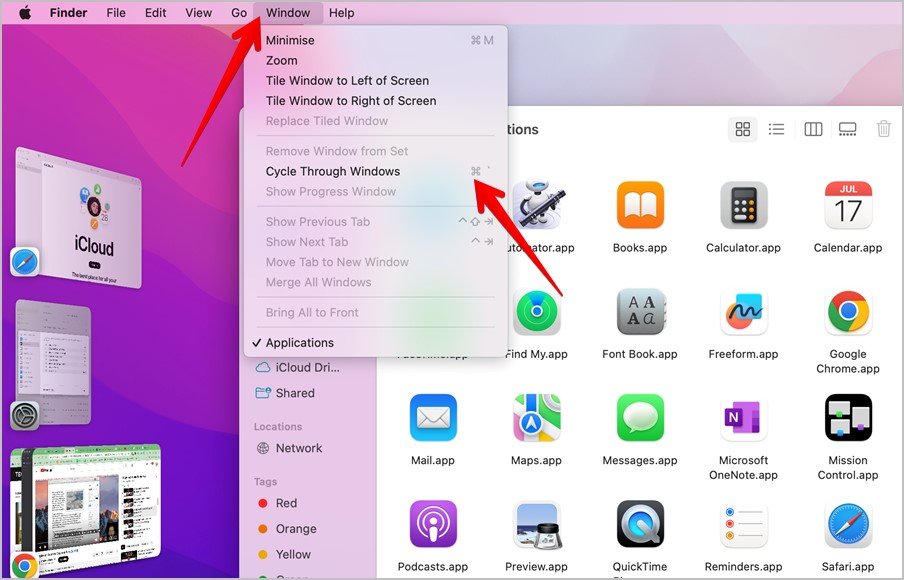
- Open Finder and click on the Window tab in the menu bar.
- Look for “Cycle Through Windows” and note the assigned shortcut.
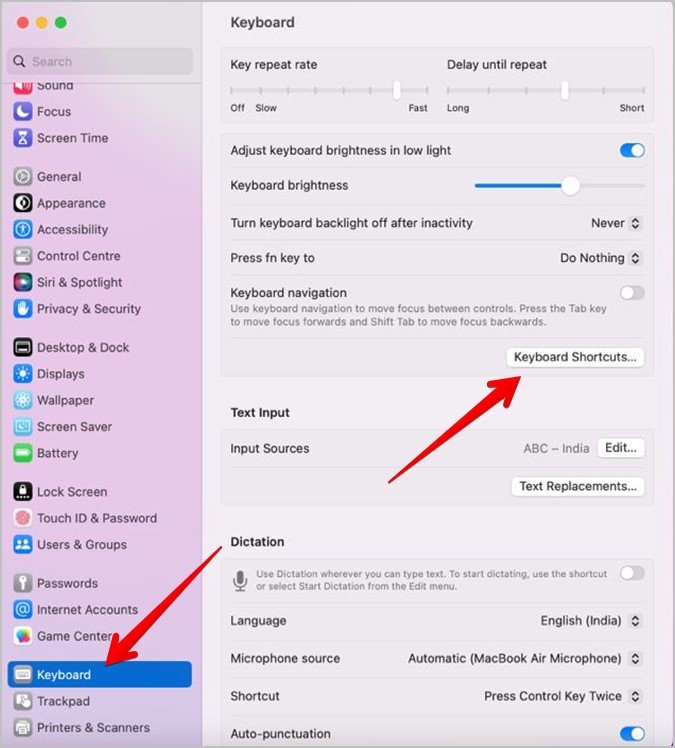

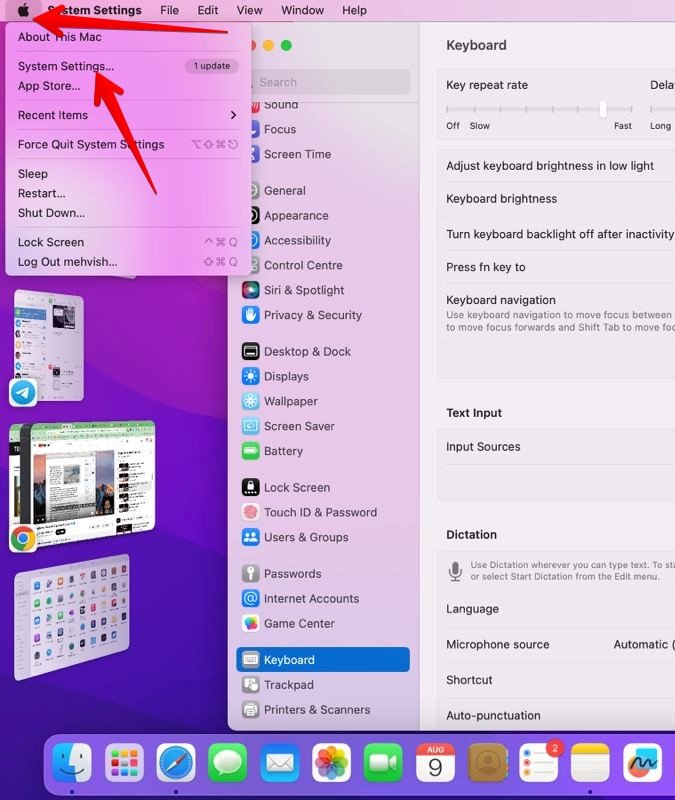
- To change it, go to System Settings > Keyboard > Keyboard Shortcuts > Keyboard, then adjust the “Move focus to next window” option.
Using Ctrl + F4 Shortcut
An alternative shortcut to toggle through open windows is Ctrl + F4 or Ctrl + fn + F4.
Tip: This shortcut skips minimized or maximized windows, making it best for actively visible windows.
Using Command + Tab Shortcut
This shortcut primarily switches between apps but can also help you navigate windows of a single app:
- Press Command + Tab to open the app switcher.
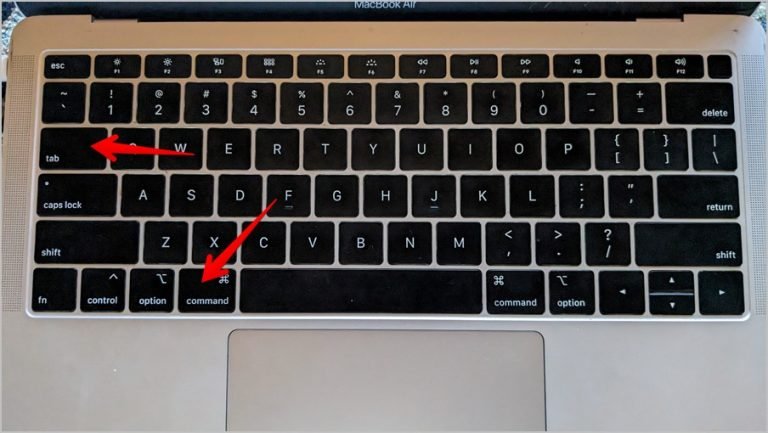
- Hold Command and tap Tab until you reach the desired app.

- Press the Down Arrow to view all windows of the selected app.

- Use arrow keys to navigate and press Return to select a window.
Pros:
- Works for minimized app windows.
Cons:
- Does not support maximized windows or switching across Spaces.
2. Switch Between Windows on Mac Using the Trackpad
Trackpad gestures are intuitive and ideal for quickly viewing or switching between app windows.
Using Mission Control (Control + Up Arrow or Swipe Up)
Mission Control provides a bird’s-eye view of all open windows and Spaces on your Mac.
- Swipe up with three fingers on your trackpad or press Control + Up Arrow.
- Select the window or desktop you wish to switch to.

Pros:
- Displays all apps, windows, and Spaces.
- Works well for multitasking.
Cons:
- Hidden or minimized apps won’t appear.
Using App Exposé (Control + Down Arrow or Swipe Down)
App Exposé focuses specifically on the open windows of a single app.
- Open an app window.
- Swipe down with three fingers or press Control + Down Arrow.

Pros:
- Streamlines navigation between an app’s windows on the same desktop.
Cons:
- Doesn’t show windows across different Spaces.
3. Switch Between Windows on Mac Using the Mouse
For those who prefer a mouse, macOS offers simple methods for managing windows.
Using the Dock
- Right-click (or Ctrl + Click) on an app’s icon in the Dock.
- A list of open windows will appear—select the one you need.

Pros:
- Works for minimized and full-screen windows.
Using the Window Tab in the Menu Bar
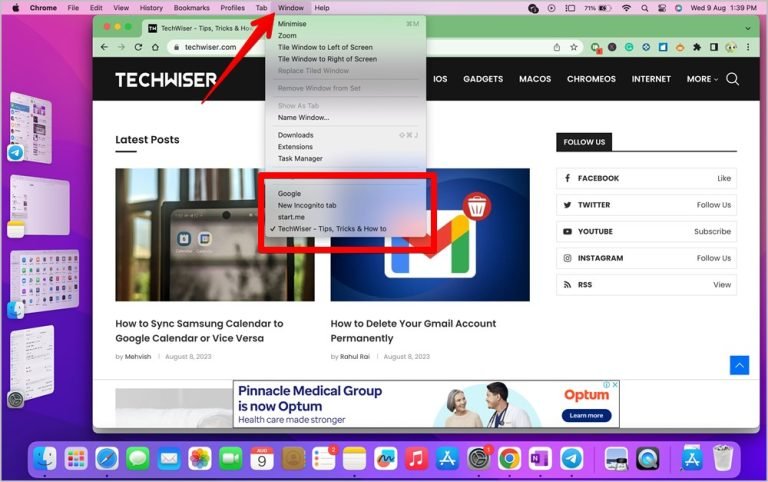
Tip: This method is especially useful for managing minimized windows.

4. Switch Between Maximized Windows
Full-screen apps act as separate Spaces in macOS. Use these shortcuts to navigate:
- Ctrl + Left Arrow or Ctrl + Right Arrow: Cycle through full-screen windows or desktops.
- Three-finger swipe left or right: Achieve the same effect with a trackpad.
5. Using Hot Corners
Hot Corners let you assign specific actions to the corners of your screen, such as displaying app windows.
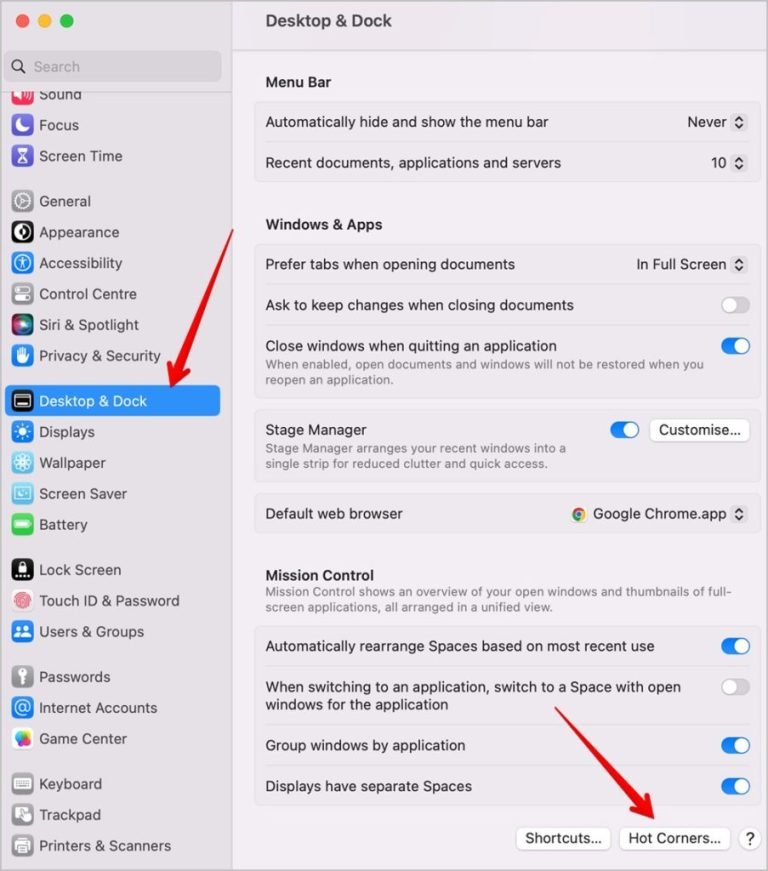
- Go to System Settings > Desktop & Dock > Hot Corners.
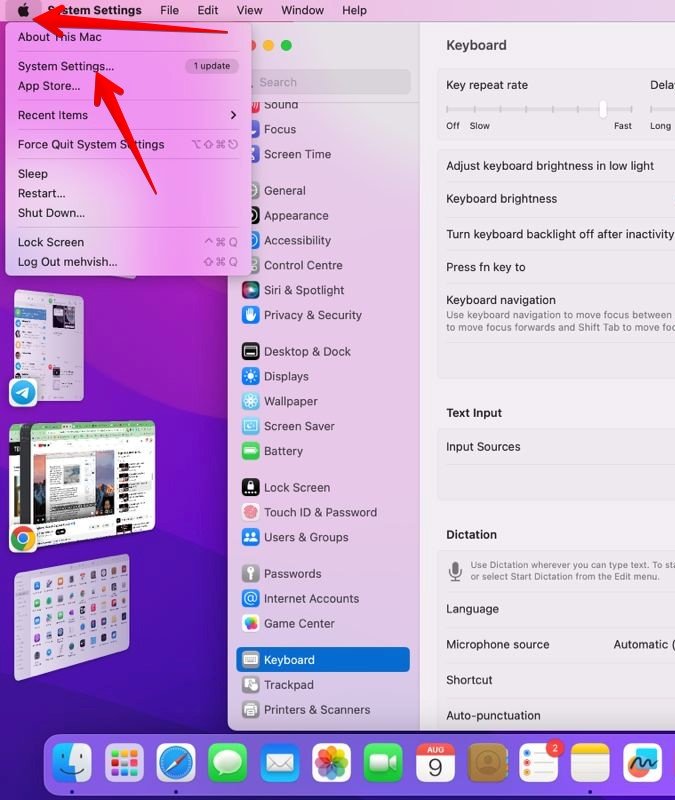
- Assign “Application Windows” to a corner of your choice.
- Move your cursor to that corner to see open windows for the current app.
Pro Tip: Pair Hot Corners with Mission Control for greater multitasking efficiency.
Frequently Asked Questions
1. How can I merge windows into a single tabbed window on Mac?
Some apps, like Safari, allow you to merge multiple windows into a tabbed view. Click Window in the menu bar and select Merge All Windows. This feature is app-specific and not universal.
2. How do I switch between different apps on a Mac?
Use Command + Tab to cycle through open apps. To see all apps and windows, use Mission Control (Control + Up Arrow).
3. How can I customize trackpad gestures on Mac?
Go to System Settings > Trackpad > More Gestures to configure gestures for Mission Control, App Exposé, and more.
4. Can I change Mac keyboard shortcuts?
Yes. Navigate to System Settings > Keyboard > Keyboard Shortcuts to adjust or create custom shortcuts for specific actions.
5. How do I snap windows on Mac for multitasking?
macOS offers Split View for side-by-side multitasking. Click and hold the green maximize button on a window, then choose a side for it. Alternatively, use third-party apps like Magnet for advanced window snapping.
Conclusion
Mastering window switching on your Mac can significantly improve your productivity and workflow. Whether you prefer the speed of keyboard shortcuts, the intuitive nature of trackpad gestures, or the flexibility of customizable features, macOS offers a solution to fit your style.
Experiment with these methods to find what works best for you, and take full advantage of your Mac’s multitasking capabilities!