

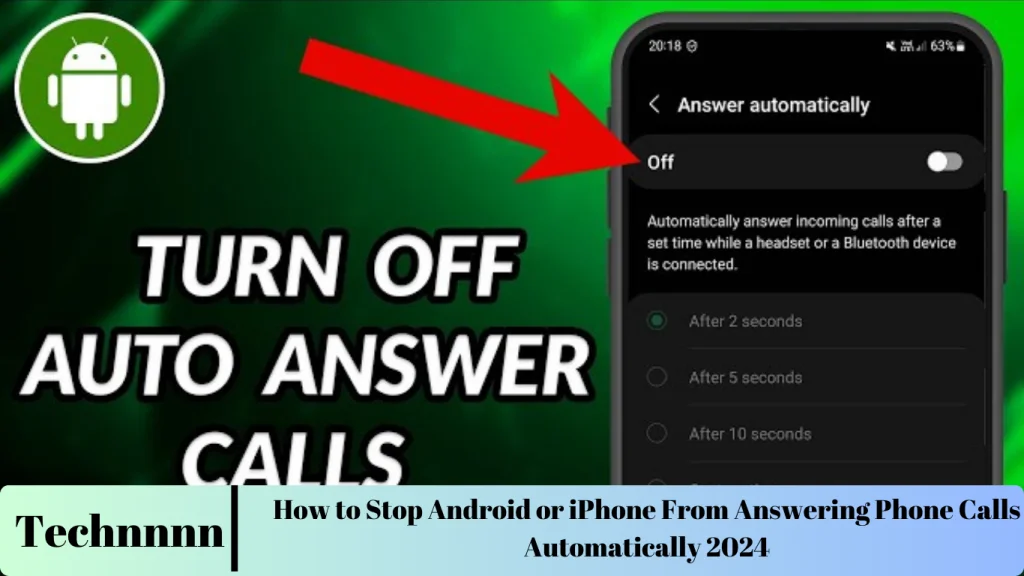
Have you noticed your Android or iPhone answering calls automatically? While this feature might be helpful for some, it often leads to awkward moments and compromises your privacy. If your phone is picking up calls by itself, especially when connected to Bluetooth or while in your pocket, follow these steps to regain control.
Turn Off Auto-Answer Calls on iPhone
If your iPhone is answering calls automatically, it could be due to the Auto-Answer Calls setting. Here’s how to turn it off:
- Open the Settings app.
- Tap on Accessibility, then select Touch.
- Tap on Call Audio Routing.
- Select Auto-Answer Calls and toggle it off.
By disabling this option, you can ensure that calls are only answered manually.
Disable Auto-Answer Calls on Android
While most Android phones don’t have a universal auto-answer feature, some brands like Samsung and Xiaomi include this functionality. To turn it off on Samsung devices:
- Open the Phone app.
- Tap the three dots in the upper-right corner and select Settings.
- Tap Answering and ending calls.
- Turn off Answer automatically.
For other Android devices, explore the phone app’s settings or consult the user manual for similar options.
Enable Accidental Touch Protection on Samsung
Samsung Galaxy phones include Accidental Touch Protection, which prevents unintended actions like auto-answered calls when the phone is in your pocket or bag. To activate it:
- Open the Settings app.
- Select Display.
- Toggle on Accidental touch protection.
This feature is particularly useful for avoiding unintentional call responses caused by accidental touches.

Manage Bluetooth Connections
Connected Bluetooth devices, such as headphones or smartwatches, can sometimes trigger automatic call answering. Disconnecting unnecessary Bluetooth devices can help prevent this issue.
For Android:
- Go to Settings > Connections > Bluetooth.
- Tap the device in question and select Disconnect.
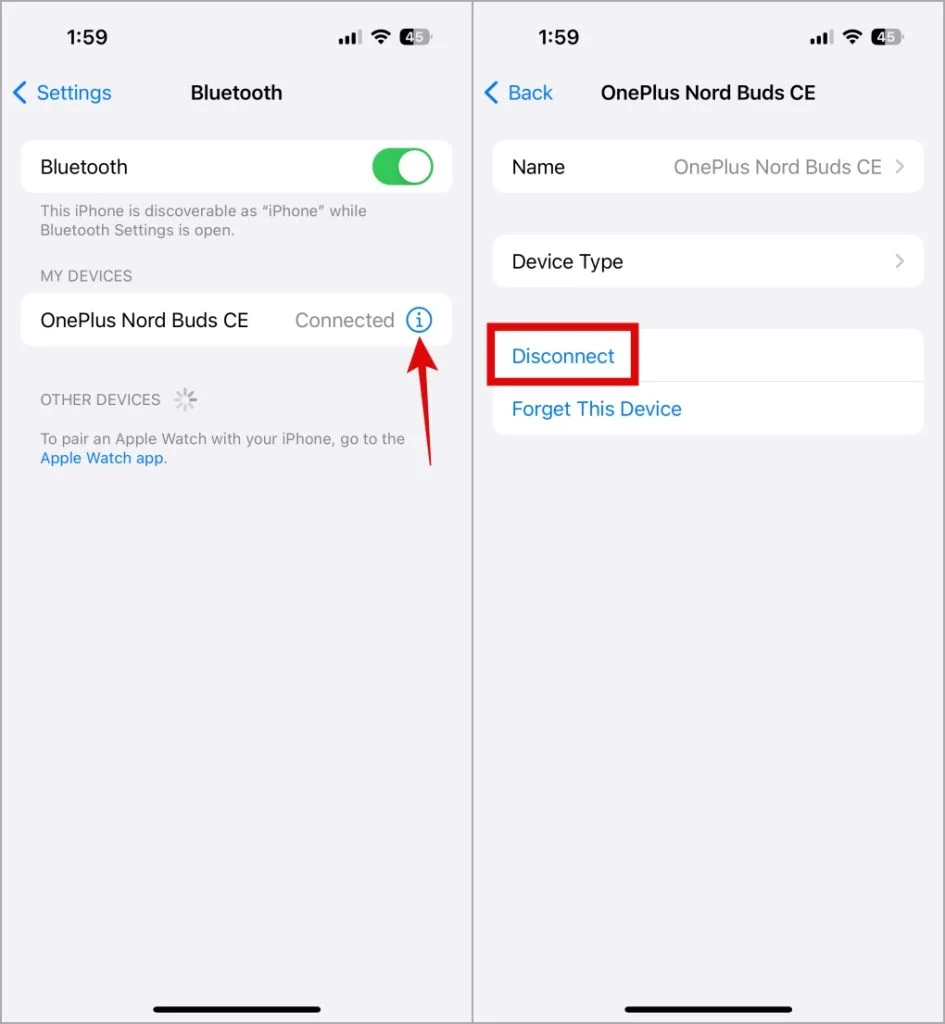
For iPhone:
- Open Settings and tap Bluetooth.
- Tap the info icon next to the connected device and select Disconnect.
Keep only essential devices connected to minimize unexpected call answers.

Keep Your Phone Updated
Software bugs can sometimes cause unintended behavior, including automatic call answering. Keeping your phone’s software and apps updated can help resolve such issues.
- For Android: Visit the Google Play Store or Galaxy Store and check for updates to the Phone app.
- For iPhone: Updates for the Phone app are bundled with iOS updates. Go to Settings > General > Software Update and install any pending updates.
Regular updates ensure you’re running the latest bug fixes and performance improvements.
Reset Your Phone Settings
If none of the above solutions work, resetting your phone settings to default can help resolve persistent issues. This process doesn’t delete personal files but restores network settings, preferences, and app configurations.
On Android:
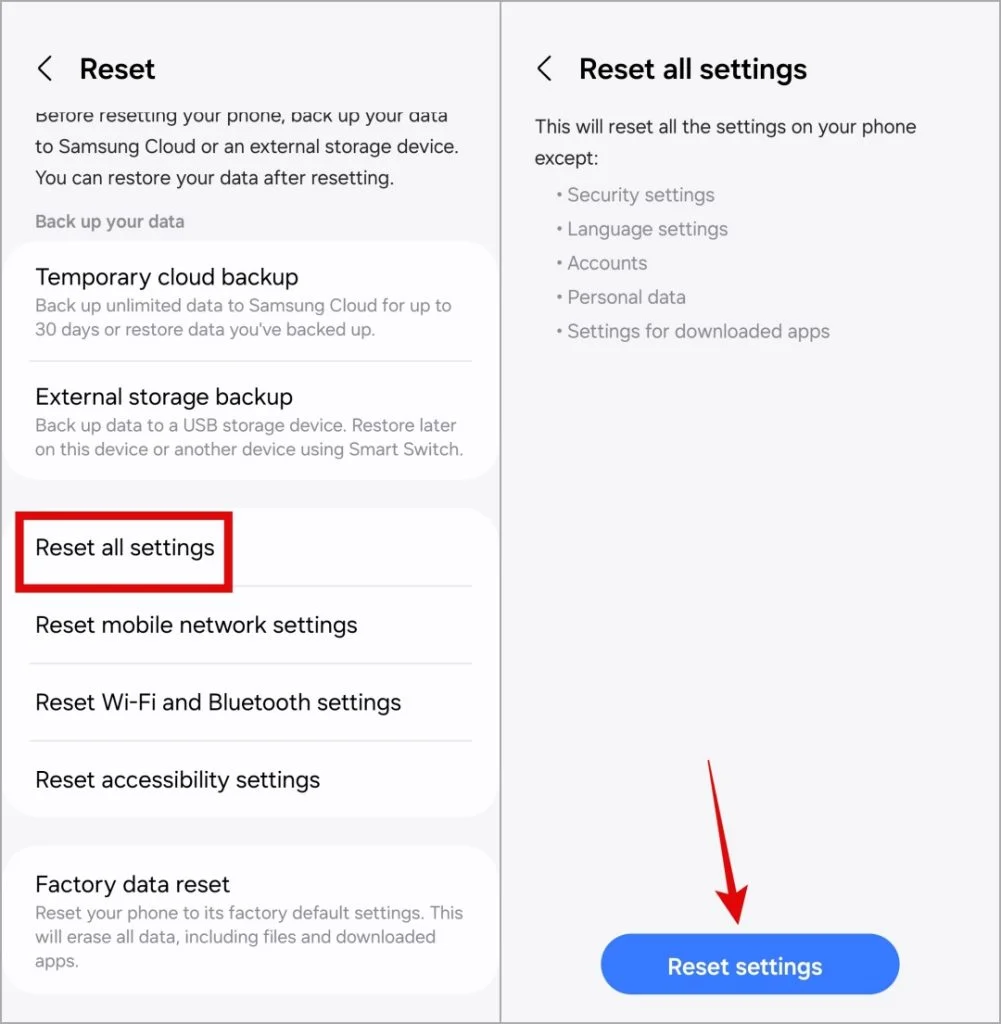
- Open Settings, go to General Management, and select Reset.
- Tap Reset all settings and confirm.
On iPhone:
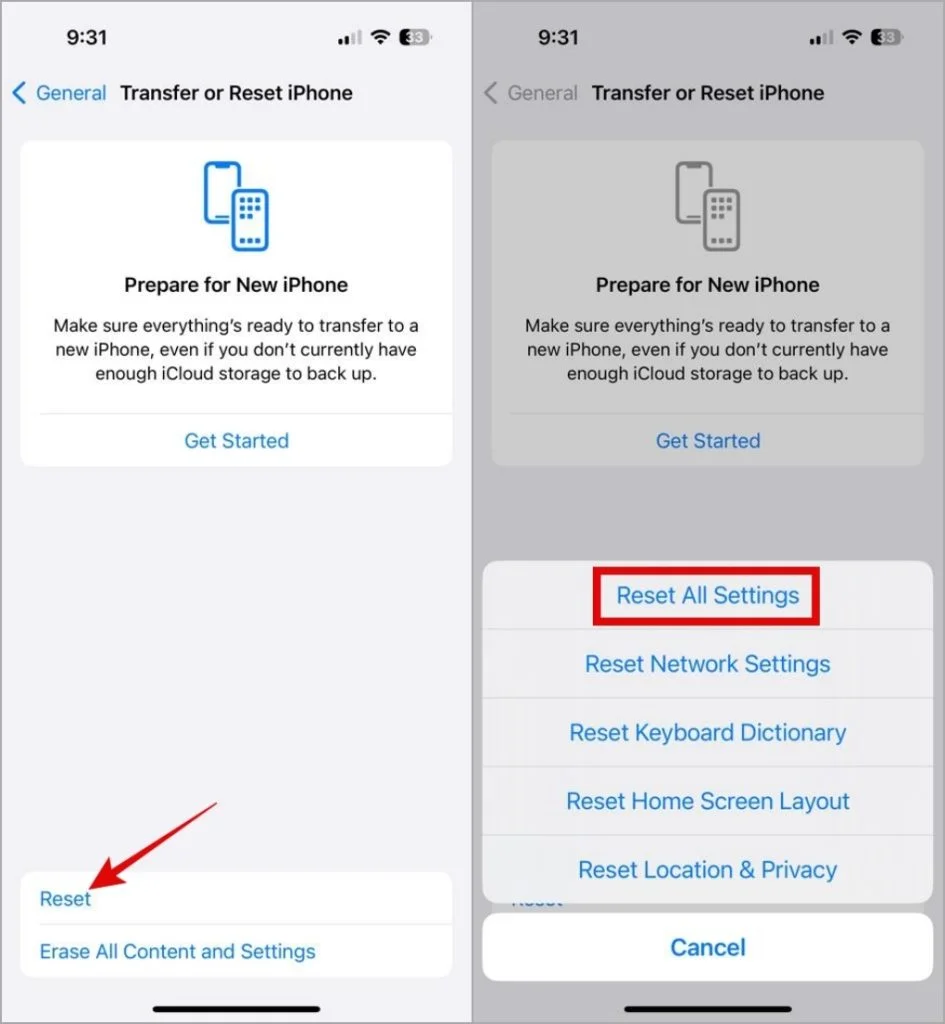
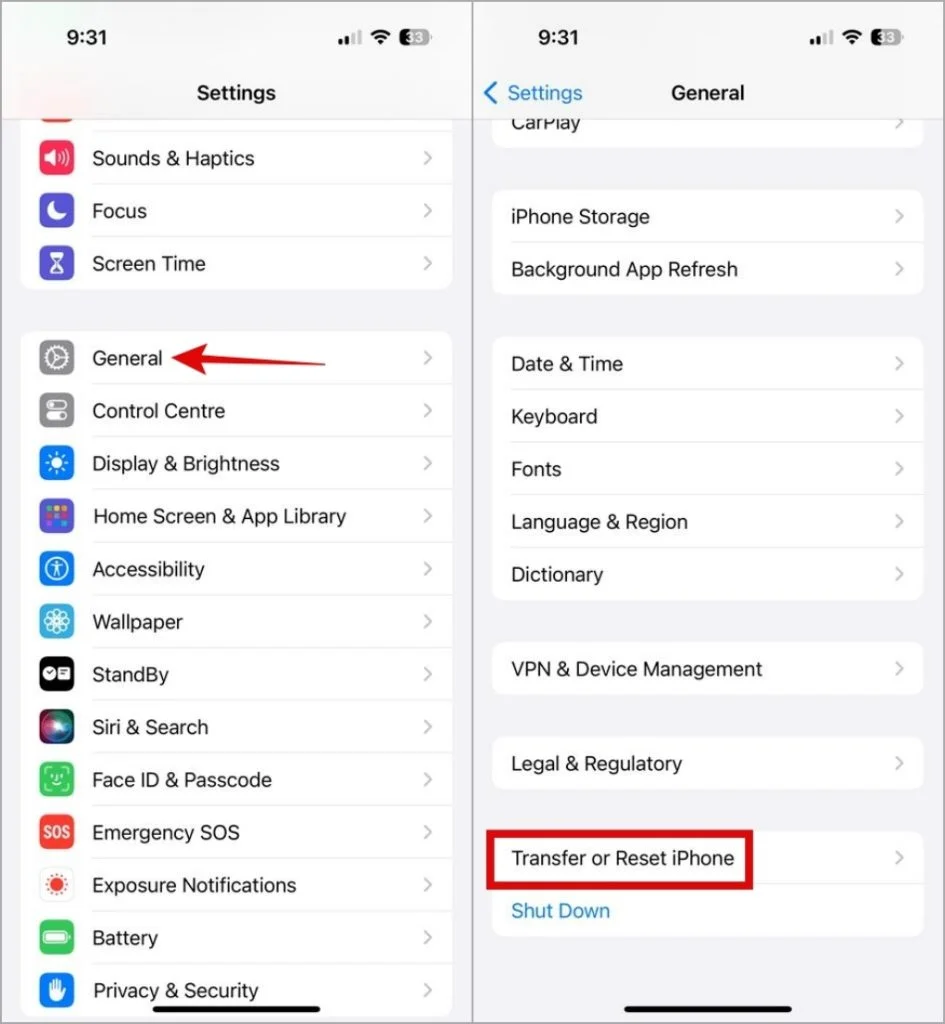
- Go to Settings > General > Transfer or Reset iPhone.
- Tap Reset and select Reset All Settings.
After the reset, reconfigure your preferences to regain control over your call settings.
Frequently Asked Questions (FAQs)
1. Can I stop receiving calls without enabling Airplane Mode?
Yes, both Android and iPhone offer Focus or Do Not Disturb mode to mute calls without disconnecting from the network. These modes allow you to customize call and notification settings to suit your needs.
2. How can I enable caller name announcements?
- On Android: Open the Phone app settings, go to Caller ID announcement, and enable Announce caller ID.
- On iPhone: Go to Settings > Phone > Announce Calls and choose a preferred option like Always or Headphones Only.
3. How do I block specific numbers?
Both Android and iPhone let you block numbers easily. In the Phone app, locate the number, tap it, and select Block. This action prevents calls and messages from that contact.
4. Can I enable auto-answer only for specific contacts?
While this feature isn’t widely available, some Android devices may offer customizable auto-answer settings. Third-party apps can also provide contact-specific configurations, but research their reliability and permissions first.
5. What if my phone keeps answering calls even after disabling auto-answer?
If your device still answers calls automatically, try resetting your network settings. If the issue persists, it could be a hardware problem—contact customer support for assistance.
Conclusion
Automatically answered calls can disrupt your day and compromise your privacy, but the solutions above help you regain control. By disabling auto-answer features, managing Bluetooth connections, enabling accidental touch protection, and keeping your phone updated, you can prevent unintentional call pickups. If necessary, resetting your phone’s settings offers a fresh start to address lingering issues.
Take these steps to ensure your phone only answers calls when you want it to—no more unexpected conversations or awkward moments!