

A mouse cursor moving on its own can be a frustrating experience, whether you’re trying to work, browse, or enjoy a gaming session. Fortunately, there are several practical solutions to address this issue. In this guide, we’ll walk you through troubleshooting steps to fix cursor problems on Windows 10 and 11.
Mouse cursor issues can stem from hardware problems, software glitches, interference from other devices, or even malware. Whether your cursor is jumping, moving erratically, or seemingly controlled remotely, the solutions below will help you resolve the problem effectively.
Before You Begin: Basic Checks
Before diving into detailed troubleshooting, ensure that the problem isn’t caused by simple, fixable issues. Here’s a checklist to go through:
- Clean your mouse and mouse pad: Dust or dirt can interfere with the sensor.
- Inspect for physical damage: Check the mouse for any cracks or signs of wear.
- Test on another computer: This helps identify whether the problem lies with the mouse or your PC.
- Switch USB ports: A malfunctioning port can affect your mouse.
- Check the power source: For wireless mice, replace or recharge the batteries.
- Restart your PC: Temporary glitches may resolve with a simple reboot.
- Close remote access software: Applications like TeamViewer or Splashtop could be controlling your mouse.
If these steps don’t resolve the issue, proceed with the advanced troubleshooting methods below.
1. Disconnect from the Internet
If your mouse stops behaving erratically after disconnecting from the internet, it could indicate malware or unauthorized access. To test this:
- Disconnect your PC from the internet.
- Observe the mouse behavior.
- If it improves, run a malware scan (explained below).
This step is especially important if you suspect your PC has been compromised.
2. Check Your Power Source
A faulty power source can cause erratic mouse behavior, especially on laptops. Follow these steps:
- Unplug and test: Use the laptop without the charger to see if the issue persists.
- Try a different outlet: Unstable power flow from an extension cord or power strip might cause interference.
- Inspect your charger: Damaged charging cables can lead to unstable power delivery.
3. Disconnect Gaming Controllers
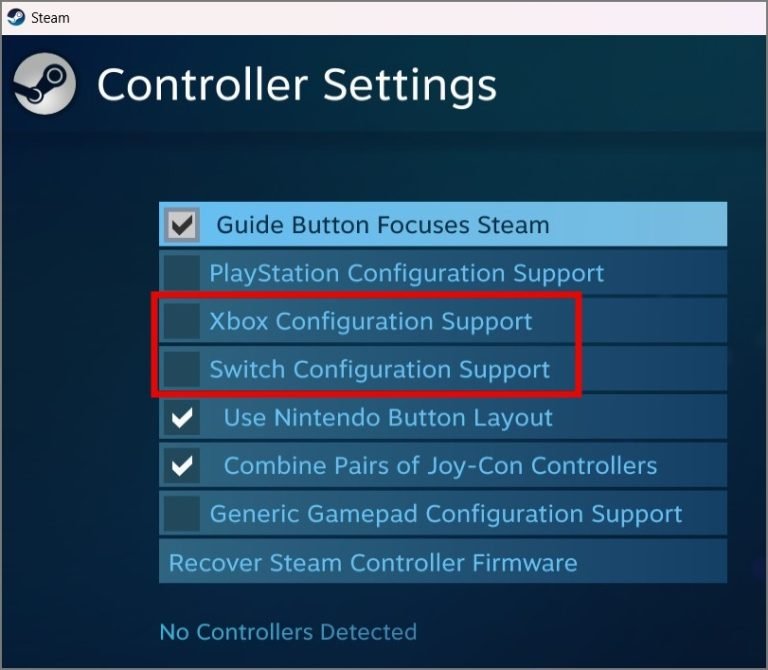
Gaming controllers connected to your PC can sometimes interfere with your mouse. If you’re using a controller, unplug it and observe your mouse’s behavior. Additionally, ensure Steam isn’t controlling your mouse:
- Open the Steam app.
- Go to Steam > Settings > Controller > General Controller Settings.
- Uncheck PlayStation Configuration Support and Xbox Configuration Support.
4. Disable the Touchpad
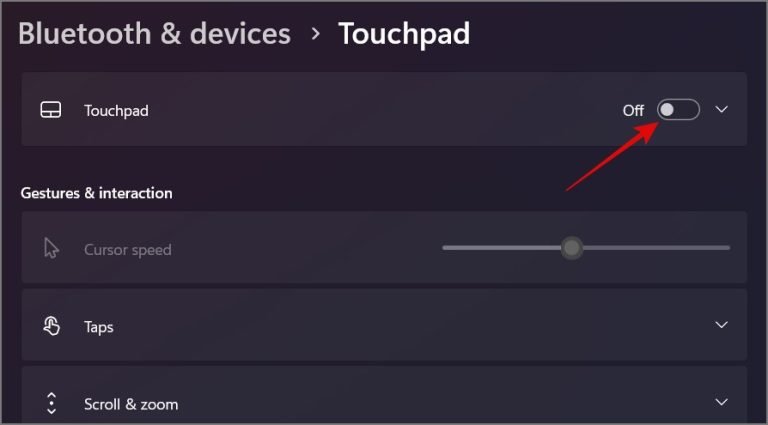
For laptop users, the touchpad might be causing unintentional cursor movement. Disable it temporarily:
- Press Windows Key + I to open Settings.
- Navigate to Bluetooth & Devices > Touchpad.
- Turn off the touchpad.
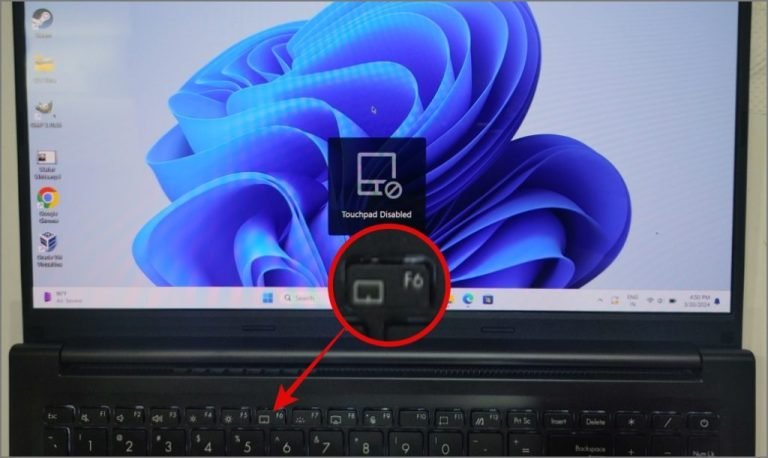
Alternatively, use the function keys (e.g., Fn + F6) to disable the touchpad.
5. Update or Reinstall Mouse Drivers
Corrupted or outdated drivers often cause cursor issues. To address this:
- Right-click the Start button and select Device Manager.
- Expand Mice and other pointing devices.
- Right-click your mouse and choose Update driver or Uninstall device.
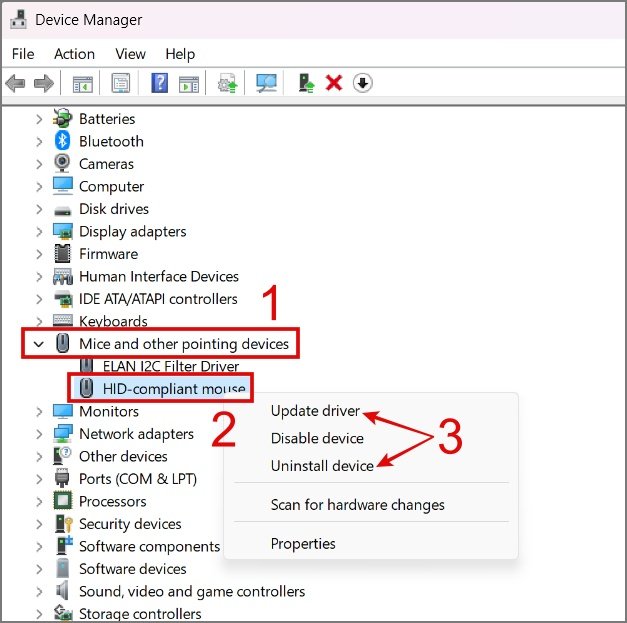
- If you uninstall, restart your PC. Windows will reinstall the driver automatically.
6. Remove Peripheral Interference
Wireless devices like Bluetooth speakers or Wi-Fi routers can interfere with your mouse, especially if they operate on the same frequency (2.4 GHz). To identify interference:
- Disconnect other wireless devices one at a time.
- Check if the mouse behavior improves.
- Ensure that only one mouse is connected to your PC.
7. Scan for Malware
Malware can cause unusual behavior in your system, including cursor movement. Use reliable anti-malware software to scan your PC:
- Open Windows Security (search for it in the Start menu).
- Go to Virus & Threat Protection > Scan Options > Full Scan.
- Remove any detected threats.
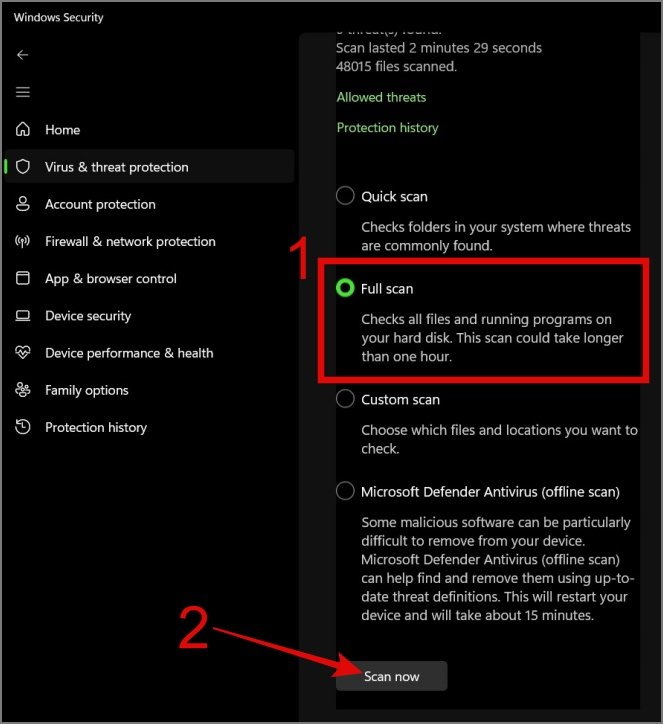
Alternatively, use trusted tools like Malwarebytes for a more thorough scan.
8. Revert to a Stable Windows Version
If you’re using an unstable Windows Insider preview build, it might be causing hardware glitches. Roll back to a stable version of Windows:
- Press Windows Key + I to open Settings.
- Go to System > Recovery.
- Under Go back, select a stable version.
Is It Time for a New Mouse?
If none of these steps solve the problem, the mouse itself might be defective. Test it on another device. If it still behaves erratically, replace it with a high-quality mouse from brands like Logitech, Razer, or Dell.
Conclusion
A mouse cursor moving on its own can disrupt your workflow, but this guide provides effective solutions to tackle the issue. From hardware checks and driver updates to malware scans and interference removal, these steps ensure that your PC and mouse work seamlessly together.
Frequently Asked Questions
1. Why is my mouse cursor moving by itself on Windows?
Cursor issues can result from hardware problems, outdated drivers, software interference, or malware infections.
2. How can I stop my mouse cursor from moving erratically?
Check for driver updates, clean your mouse, disable the touchpad, or run a malware scan to address the problem.
3. Can a bad power source affect my mouse performance?
Yes, unstable power from a faulty charger or outlet can cause erratic cursor movement.
4. What should I do if my mouse driver is already up to date?
Try uninstalling the driver and restarting your PC to let Windows reinstall it.
5. How do I know if my mouse is defective?
Test the mouse on another computer. If the problem persists, it’s likely defective and needs replacement.