


Discord has become an essential platform for gamers, businesses, and online communities, offering a dynamic space for communication and collaboration. However, macOS users may occasionally face the frustrating issue of Discord not opening. This guide provides comprehensive solutions to resolve the problem and get Discord running smoothly on your Mac.

1. Check Your Network Connection
A stable internet connection is crucial for Discord to function properly. If your Mac struggles with connectivity, the app may fail to launch.
Steps to Verify Your Network Connection
- Access Network Settings: Click the Action Center icon in the menu bar.
- Connect to Wi-Fi: Ensure you’re connected to a reliable, high-speed network, preferably on a 5GHz frequency for improved performance.
Tip: Use online speed tests (e.g., Speedtest.net) to confirm your network’s stability.
2. Diagnose Network Issues
Misconfigured network settings can hinder Discord’s ability to open. Switching to Google Public DNS or renewing your IP address might resolve the issue.
Switch to Google Public DNS
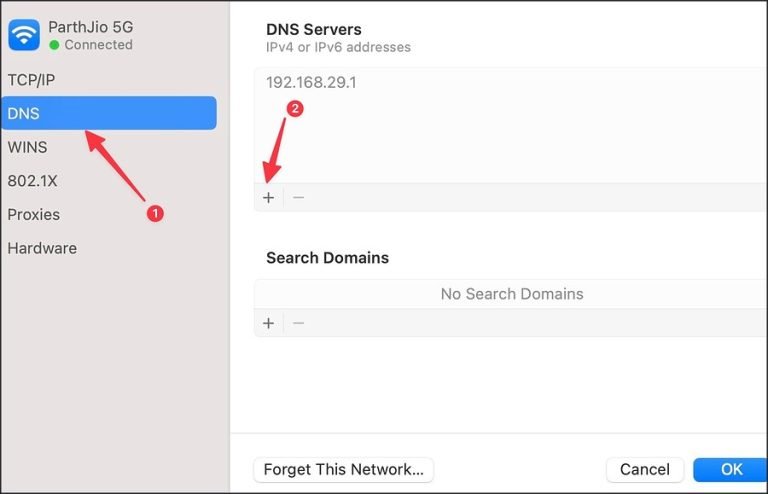
- Open System Settings: Click the Apple icon and navigate to System Settings > Wi-Fi > Details.
- Modify DNS Settings: In the DNS section, add the following servers:
- IPv4:
8.8.8.8,8.8.4.4 - IPv6:
2001:4860:4860::8888,2001:4860:4860::8844
- IPv4:
- Save changes and restart Discord.
Renew Your IP Address
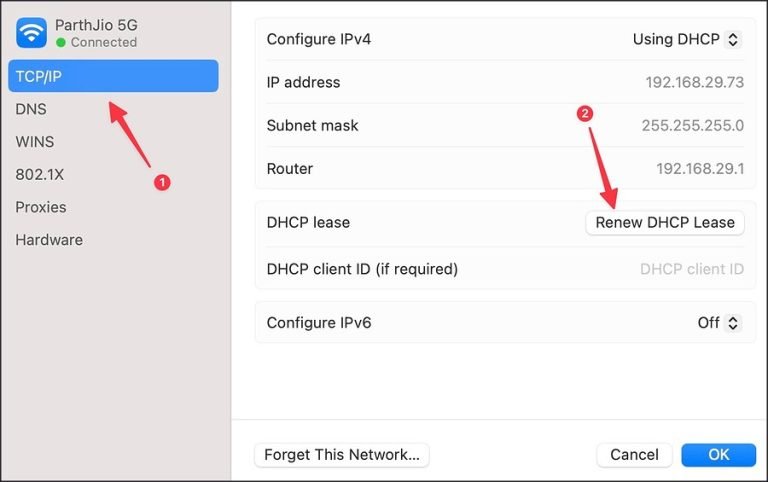
- Go to System Settings > Wi-Fi > Details > TCP/IP.
- Click Renew DHCP Lease and confirm with OK.
Note: These steps ensure that your Mac has a fresh connection to your network.
3. Restart Your Mac
Sometimes, a simple reboot can fix temporary glitches affecting Discord.
How to Restart Your Mac
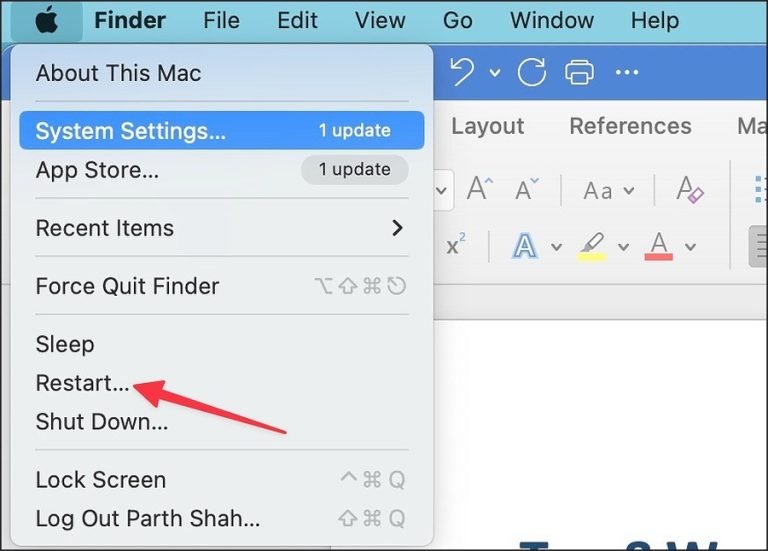
- Click the Apple icon in the top-left corner.
- Select Restart and wait for the system to reboot completely.
- Once restarted, try launching Discord again.
Pro Tip: Restarting your Mac also clears temporary files that may interfere with app performance.
4. Free Up RAM on Your Mac
Insufficient memory can cause applications, including Discord, to fail at launch.
Steps to Free Up RAM
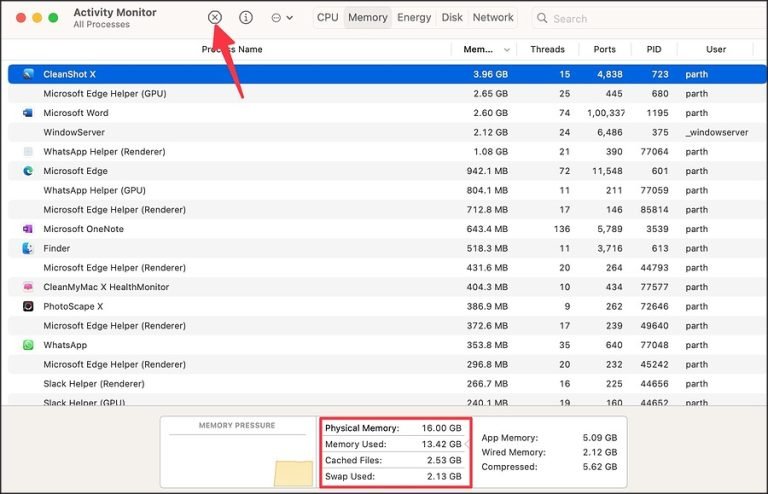
- Open Activity Monitor from the Applications folder.
- Navigate to the Memory tab to view resource usage.
- Identify apps consuming excessive memory and force-close them by selecting the app and clicking the X icon.
- Try opening Discord again.
Pro Tip: Avoid running heavy apps like video editors or virtual machines while using Discord.
5. Restart Discord
If Discord is unresponsive, restarting the app may resolve the issue.
Force Quit and Restart Discord
- Open Activity Monitor as described above.
- Locate Discord in the list, select it, and click the X to force-quit the app.
- Relaunch Discord from the Applications folder.
6. Reinstall Discord
Corrupted installation files can prevent Discord from launching. A clean reinstall often resolves these issues.
Steps to Reinstall Discord
- Remove Discord Files:
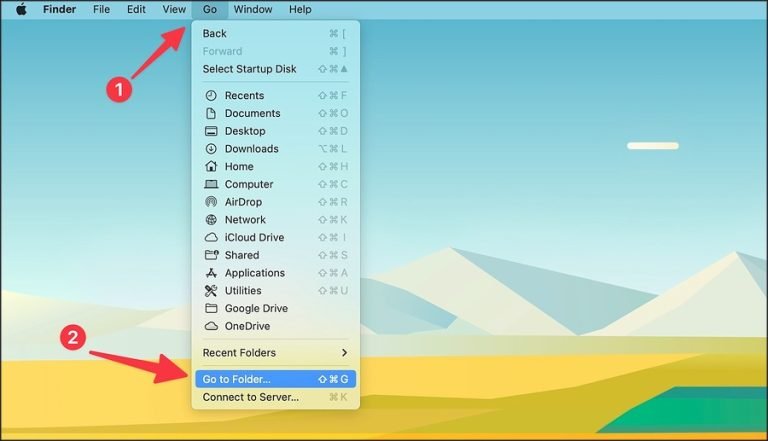
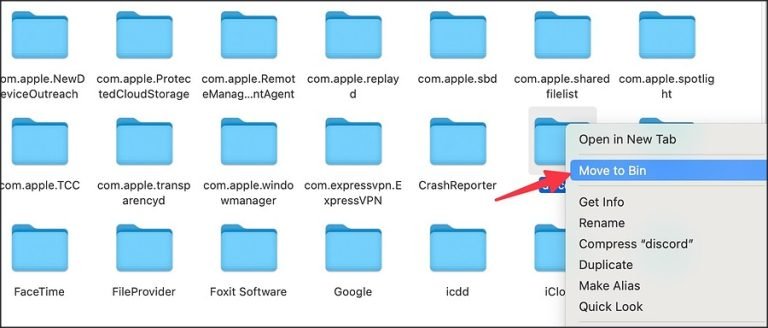
- Open Finder, select Go in the menu bar, and choose Go to Folder.
- Enter
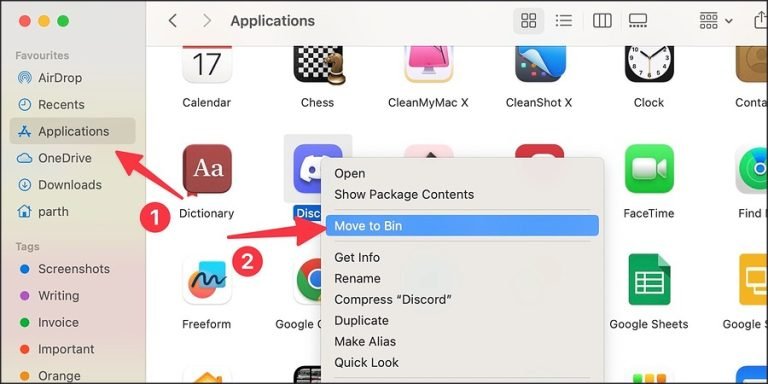
~/Library/Application Support, locate the Discord folder, and move it to the Bin. - Navigate to the Applications folder, locate Discord, and move it to the Bin.
- Reinstall the App:
- Visit the official Discord website to download the latest version.
- Install Discord and launch it to confirm the issue is resolved.
Pro Tip: Always download software from official sources to avoid malware risks.
7. Check Discord’s Server Status
Sometimes, the issue may not be with your Mac but with Discord’s servers.
How to Check Discord Server Status
- Visit a site like Downdetector to check for reported outages.
- Alternatively, check Discord’s official Twitter account for updates on server status.
Tip: If there’s a server issue, switch to the web version (see below) until it’s resolved.
8. Use Discord Web
If the desktop app refuses to open, the web version is a viable alternative.
Access Discord on the Web
- Open your preferred browser (e.g., Google Chrome).
- Go to the Discord website and log in.
- Enable notifications for Discord by clicking the lock icon in the address bar and adjusting site settings.
Pro Tip: Bookmark the Discord website for easy access during app downtime.
Frequently Asked Questions (FAQs)
1. What should I do if Discord still won’t open after following these steps?
If the problem persists, contact Discord Support or check community forums for advanced troubleshooting tips.
2. Can I use Discord on other devices while troubleshooting on my Mac?
Yes, Discord is available on mobile devices and other computers. Use the web version or mobile app in the meantime.
3. Will reinstalling Discord delete my account settings?
No, your settings are tied to your account and stored in the cloud. Reinstalling the app won’t affect them.
4. How can I tell if my Mac is running out of RAM?
Use Activity Monitor to check memory usage. If most of your RAM is consumed, close unused apps to free up resources.

5. What internet connection is best for Discord?
A stable, fast connection (preferably on a 5GHz Wi-Fi network) ensures seamless performance on Discord.
Conclusion
Encountering issues with Discord on macOS can be frustrating, but with the solutions outlined in this guide, you can troubleshoot effectively. From checking your network connection to reinstalling the app, these steps should help you resolve the problem and get back to your activities. If all else fails, the Discord web version is a reliable alternative while you seek further support.
Stay connected and enjoy hassle-free communication with Discord!