

e Sea
If you’ve noticed Google Search results appearing in a regional language instead of your preferred language, you’re not alone. Google’s regional language suggestions aim to make searches more localized. However, this can be frustrating if you prefer to use only English for all your searches. Changing your Google Account language settings or Google Search settings might not entirely resolve the issue.
Thankfully, there’s a reliable way to ensure a consistent search experience across devices. This guide will walk you through simple steps to disable regional language suggestions on both Google Chrome (or any browser) and the Google App.

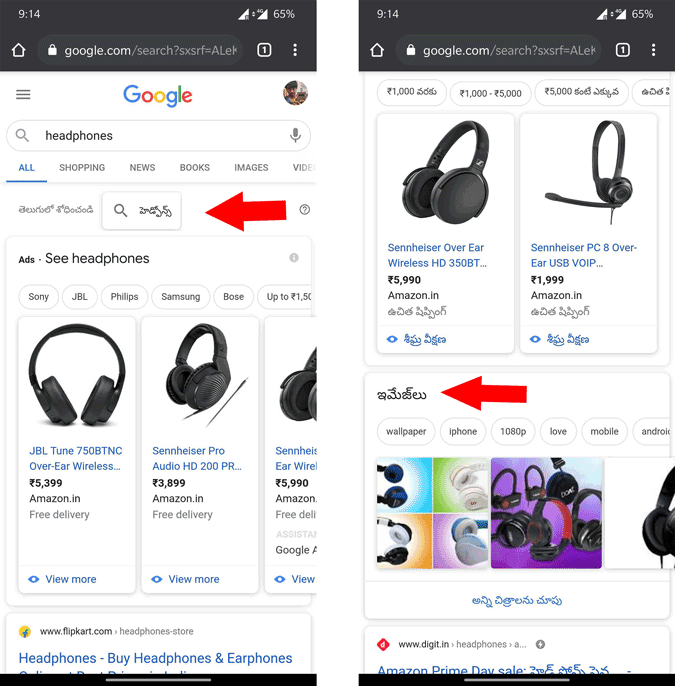
Why Does Google Suggest Regional Languages?
Google often detects your region using your IP address or device settings and attempts to personalize search results by suggesting local languages. While this can be helpful for some, others may find it distracting or unnecessary. To avoid these interruptions, follow the steps below to disable regional language suggestions.
How to Disable Regional Language Suggestions on Google Chrome (or Any Browser)
Regional language suggestions primarily occur due to Google’s automatic detection of your region. While changing the language in Google Search settings might help, adjusting the region setting is the most effective solution.
Step 1: Open Google Search Settings
- Open your browser (Chrome or any other browser) and go to google.com.

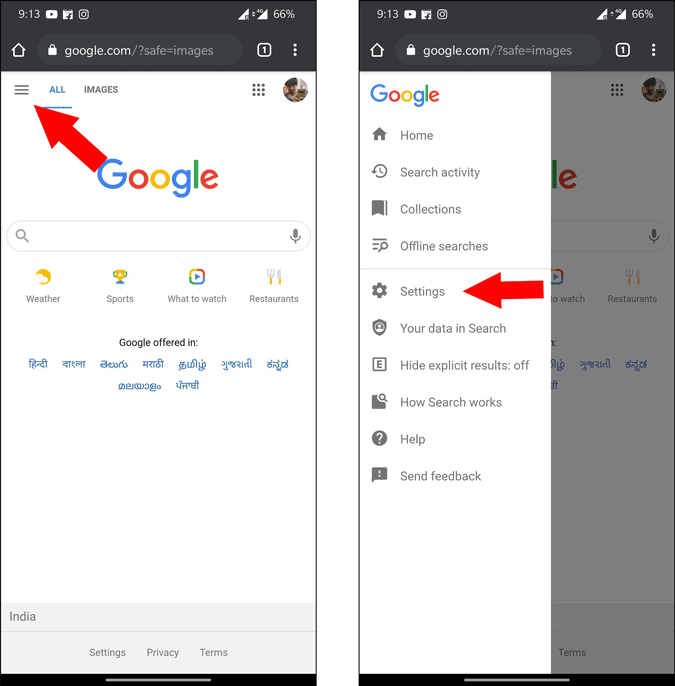
- Click the three horizontal lines (hamburger menu) at the top-left corner.
- Select Settings from the menu.
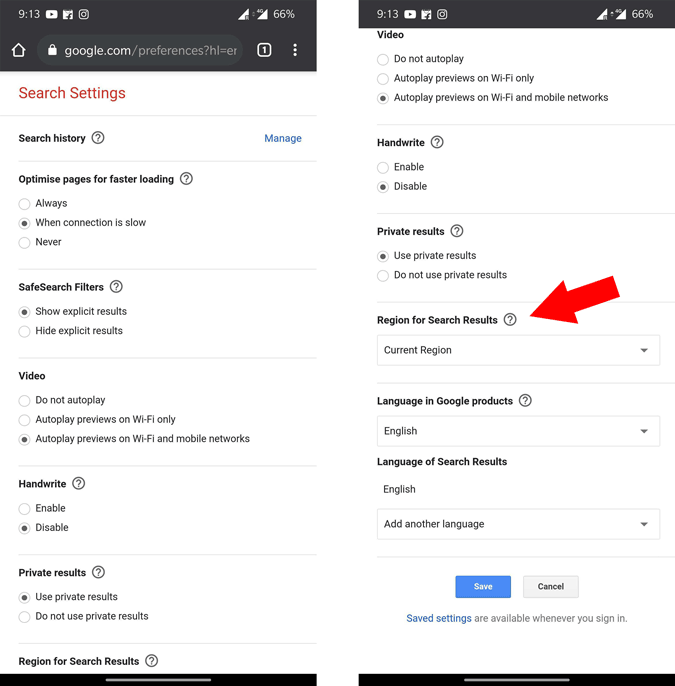
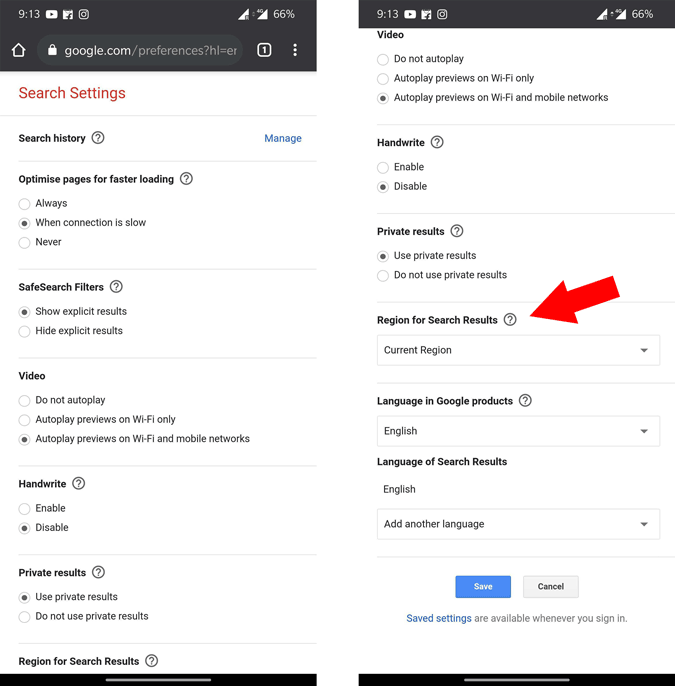
Step 2: Change Region for Search Results


- Scroll down to the section labeled “Region for Search Results”.
- By default, this is set to Current Region.
- Open the dropdown menu and select an English-speaking region, such as the United States or the United Kingdom.
- Scroll to the bottom and click Save to apply the changes.
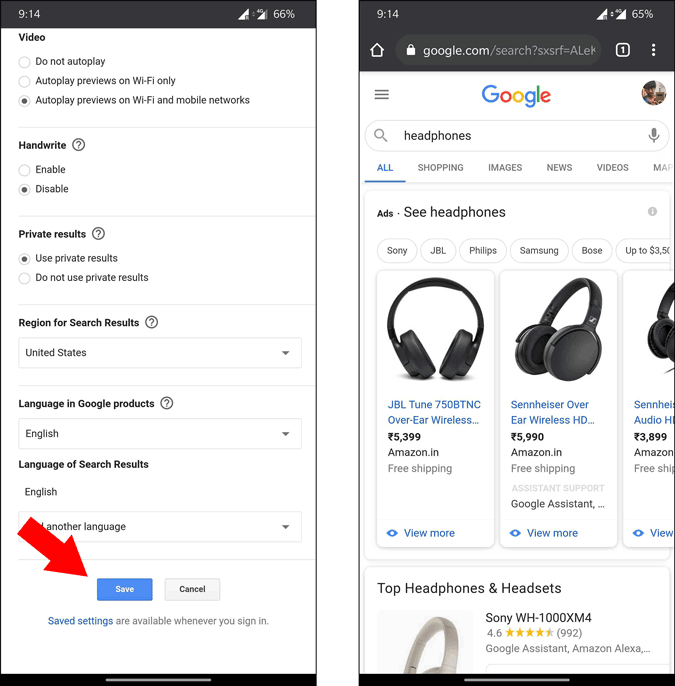
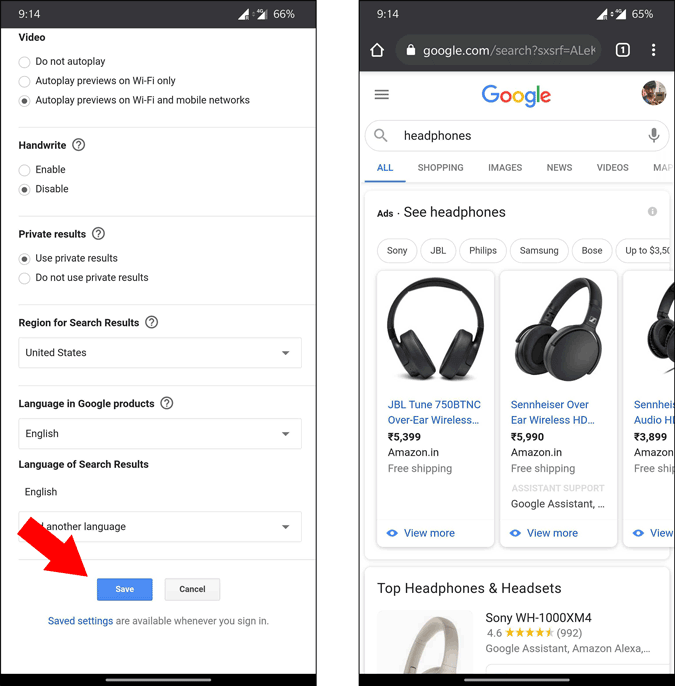
Once saved, the page will reload, and you should no longer see regional language suggestions. To verify, run a quick Google search.
How to Disable Regional Language Suggestions on the Google App
Changing the region setting on your browser does not affect the Google App. To ensure a consistent experience, adjust the settings on the Google App separately.
Step 1: Open Google App Settings
- Launch the Google App on your phone.

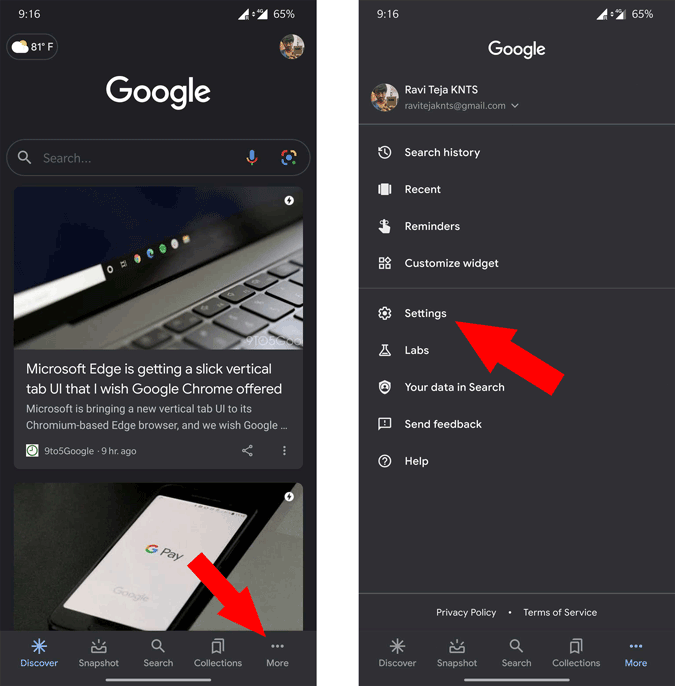
- Tap the More option (three dots) at the bottom-right corner.
- Select Settings from the menu.
Step 2: Adjust Language and Region
- In the Settings menu, navigate to Language and Region.
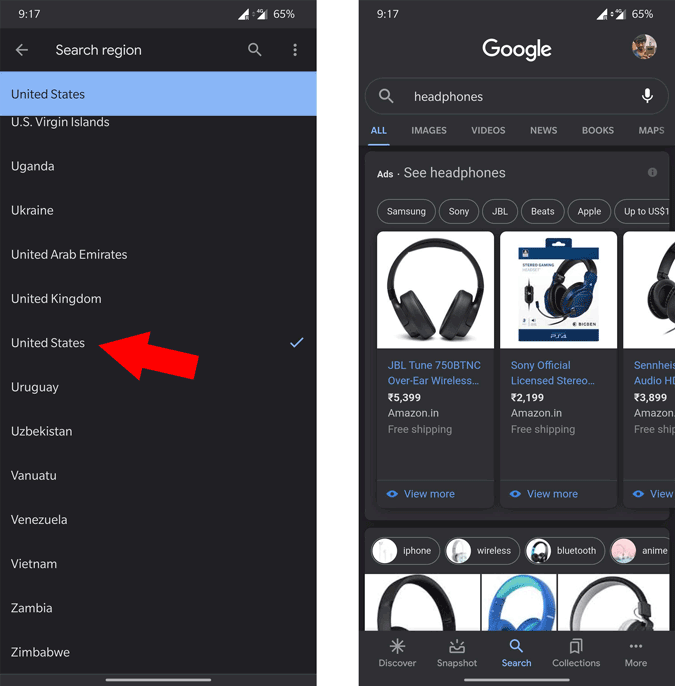
- Tap on Search Region and choose an English-speaking region, such as the United States.


Step 3: Verify Changes
After making these changes, return to the app’s main screen and perform a test search. You should now see results in your preferred language.

Additional Tips for Managing Google Search Language
- Clear Cookies: Clearing your browser’s cookies can help reset search preferences if changes aren’t applied correctly.
- Use VPN Services: If your preferred region is outside your actual location, using a VPN service can prevent Google from auto-detecting your current region.
- Mobile Browser Adjustments: Ensure you’ve adjusted region settings on both desktop and mobile browsers for a seamless experience.
Conclusion
Dealing with regional language suggestions on Google can be inconvenient, but the solution is straightforward. By adjusting the region settings on both your browser and the Google App, you can ensure a consistent search experience across devices. While these changes won’t affect localized search features, they will eliminate unwanted language switches, allowing you to enjoy Google Search in your preferred language.
Frequently Asked Questions (FAQs)
Q1: Why does Google Search show results in a regional language?
Google automatically detects your location through your IP address or device settings and attempts to make search results more localized, which often leads to regional language suggestions.
Q2: Will changing my region affect local search results, like “restaurants near me”?
No, changing your search region only stops language suggestions. Location-based results like nearby restaurants will still appear based on your actual location.
Q3: Can changing my Google Account language fix this issue?
Not entirely. While setting your account language to English might help, regional suggestions are tied to the search region. Adjusting the region settings is necessary for a consistent experience.
Q4: Will my changes synchronize across all devices?
Unfortunately, no. Region and language settings must be adjusted individually for the browser and Google App on each device.
Q5: Is there a permanent solution to stop regional language suggestions?
The most reliable solution is to set your preferred region on both the browser and Google App. This ensures consistent language preferences across platforms.
By following these steps and tips, you can take control of your Google Search experience, ensuring it always aligns with your language preferences.