


Efficiently managing windows on macOS can be challenging, especially for users accustomed to the intuitive snapping features of Windows. While macOS offers basic tools, many users find them limited. Thankfully, third-party apps provide advanced options to organize, resize, and snap windows seamlessly. This guide will explore the best native and third-party solutions for window snapping on macOS.
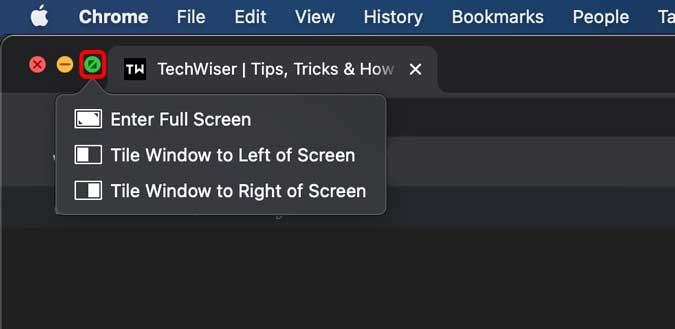
Native Solution: Window Snapping with macOS Mission Control
macOS introduced basic window snapping starting with macOS Catalina, allowing users to tile windows to the left or right of the screen. While useful, this feature lacks the ease and functionality of its Windows counterpart. Here’s how to enable and use it:
- Enable Window Snapping:
- Navigate to System Preferences > Mission Control and enable “Displays have separate spaces.”
- This ensures you can snap windows independently across multiple displays.
- Snap Windows:
- Click and hold the green maximize button on the top-left corner of a window.
- Select whether to snap the window to the left or right half of the screen.
💡 Pro Tip: Clicking the green button without holding it will maximize the window. Holding it reveals snapping options. While functional, this feature is limited to basic tiling and lacks keyboard shortcuts or advanced configurations.
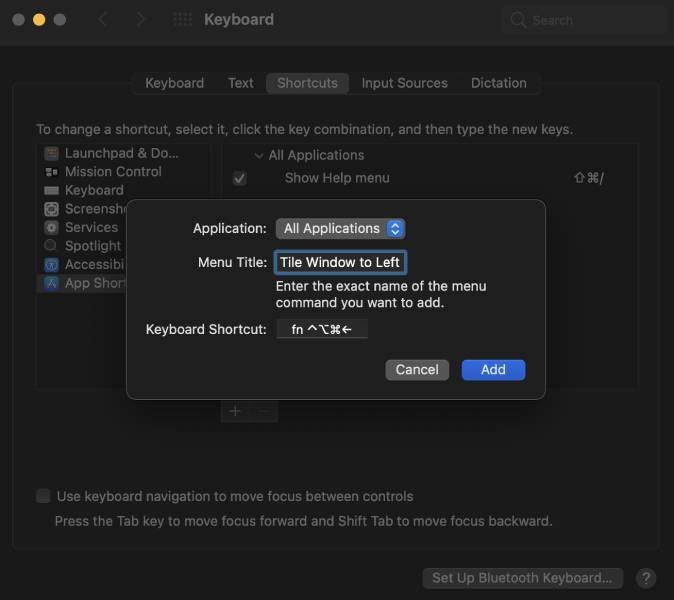
Enhancing Native Features: Keyboard Shortcuts for Snapping
For users who prefer shortcuts, macOS allows you to create custom keyboard shortcuts for window snapping:
- Go to System Preferences > Keyboard > Shortcuts > App Shortcuts and click Create New Shortcut.
- Assign shortcuts for Tile Window to Left of Screen and Tile Window to Right of Screen.
- Use these shortcuts to quickly position windows without relying on the green button.
Although helpful, this method lacks advanced preset options found in third-party apps.
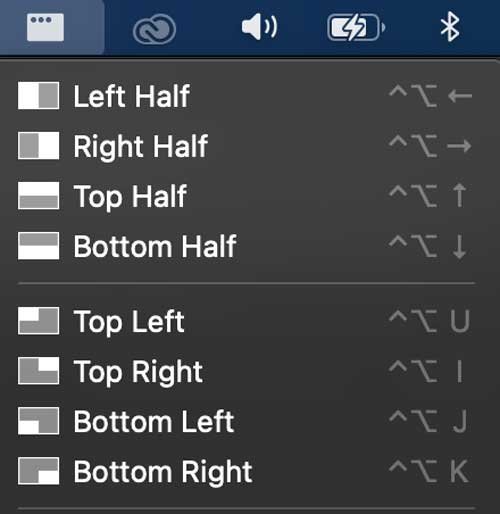
Best Third-Party Apps for Window Snapping on macOS
1. Rectangle
Rectangle is a free, open-source app offering robust keyboard shortcuts for snapping and resizing windows. It’s ideal for users who prefer precision and flexibility.

Key Features:
- Over 20 customizable window positioning presets, including edges, corners, and thirds.
- Intuitive keyboard shortcuts for quick actions.
- Minimalistic design that runs silently in the menu bar.
💡 Drawback: Rectangle doesn’t support drag-and-snap functionality, which may limit its appeal for some users.
2. Hookshot
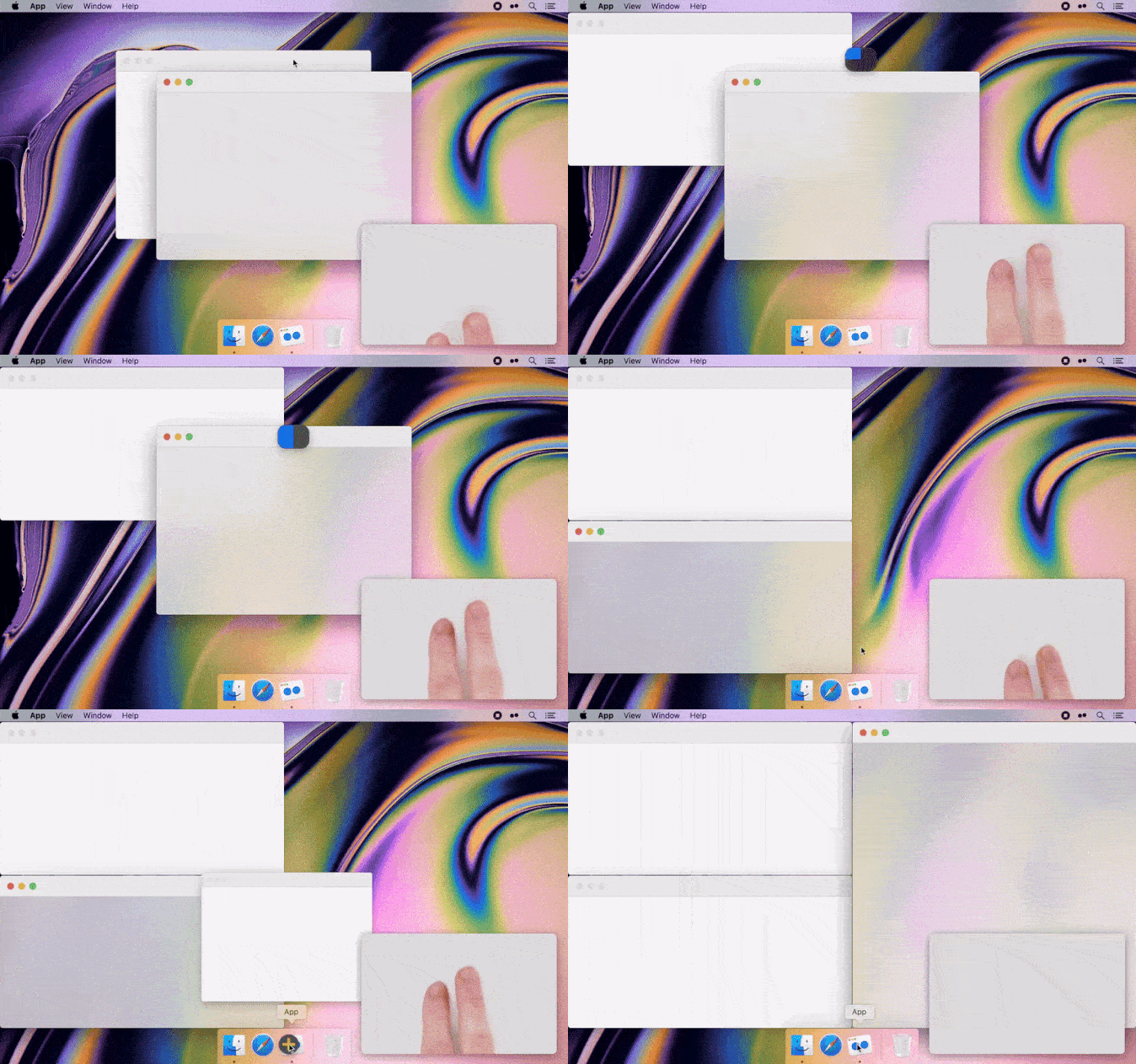
Hookshot builds on Rectangle’s features, adding drag-and-snap functionality for easier window management. It’s designed for users who prefer a hybrid of shortcuts and drag-and-drop snapping.
Key Features:
- Snap windows via keyboard shortcuts or drag-and-snap.
- Configure custom snapping zones for personalized layouts.
- Includes a 10-day free trial, with a lifetime license available for $7.99.
Hookshot is an excellent choice for advanced users who need precise control over their workspace.
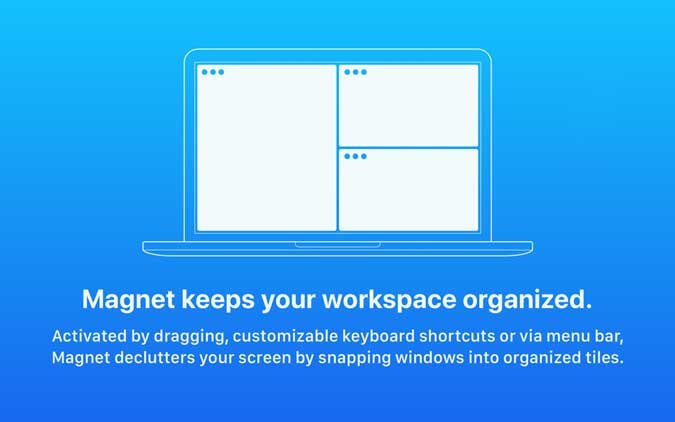
3. Magnet
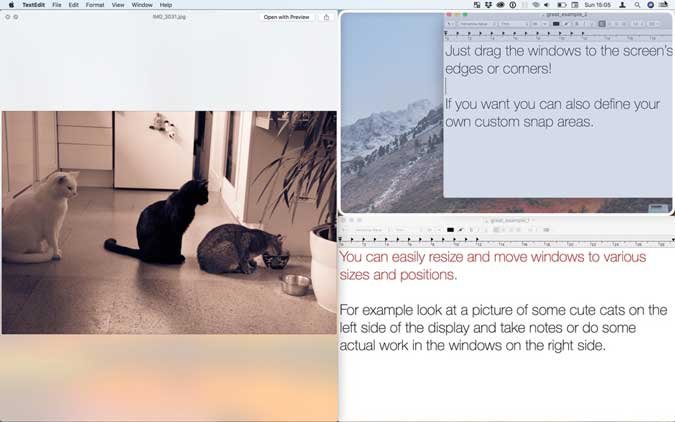
Magnet is a budget-friendly app offering both drag-and-snap and advanced keyboard shortcut options. It’s perfect for users looking to organize their windows into various configurations.
Key Features:
- Snap windows to halves, quarters, or even sixths for more granular control.
- Fully supports multi-monitor setups with vertical snapping.
- Available on the Mac App Store for $2.99.
Magnet strikes a great balance between price and functionality, making it one of the most popular snapping apps.
4. Swish
If you enjoy working with gestures, Swish takes window snapping to the next level by utilizing the MacBook trackpad.
Key Features:
- Intuitive gestures for snapping, resizing, and organizing windows.
- Supports snapping to halves, thirds, quarters, and custom configurations.
- Includes a 14-day free trial, with a one-time purchase cost of $5.
💡 Pro Tip: Swish is ideal for users who dislike shortcuts and prefer gesture-based interactions.
5. BetterSnapTool
BetterSnapTool offers unparalleled customization, letting you define your own snapping zones and window sizes. It’s perfect for users seeking complete control over their window layout.
Key Features:
- Create custom snap areas for unique configurations.
- Assign keyboard shortcuts to predefined positions.
- Available on the Mac App Store for $2.99.
BetterSnapTool is unmatched in terms of flexibility and customization, making it a favorite for power users.
FAQs: Frequently Asked Questions
1. How do I enable window snapping on macOS?
Enable the “Displays have separate spaces” option under Mission Control in System Preferences. Then, hold the green maximize button on a window to access snapping options.
2. Can I snap windows using keyboard shortcuts on Mac?
Yes, macOS supports custom shortcuts for tiling windows. Apps like Rectangle and BetterSnapTool provide even more advanced shortcuts.
3. Are there free window snapping apps for Mac?
Yes, Rectangle is a free, open-source app with extensive snapping options.
4. What’s the best app for multi-monitor setups?
Both Magnet and BetterSnapTool support multi-monitor configurations, offering vertical snapping and custom layouts.
5. Does Swish work with keyboard shortcuts?
No, Swish is exclusively gesture-based, making it ideal for users who prefer trackpad interactions.
Conclusion
While macOS provides basic window management tools, third-party apps significantly enhance productivity with advanced snapping features. Rectangle is a fantastic free option for keyboard shortcut enthusiasts, while apps like Hookshot and Magnet add drag-and-snap capabilities. For users seeking unique layouts, BetterSnapTool is the ultimate customizable solution. Choose the tool that best fits your workflow and transform your macOS experience today!