


If your Google Chrome browser appears black or displays an unusual color, don’t worry—this is usually not a virus or hacker issue. It’s likely due to settings such as dark mode, themes, or incognito mode. This comprehensive guide will help you restore Chrome’s default white color on Android, iPhone, Windows, and Mac.
1. Turn Off Dark Mode in Google Chrome
Dark mode is one of the most common reasons for Chrome appearing black. Below are the steps to disable dark mode on various devices.
Turn Off Dark Mode on Android
- Open Google Chrome on your Android device.
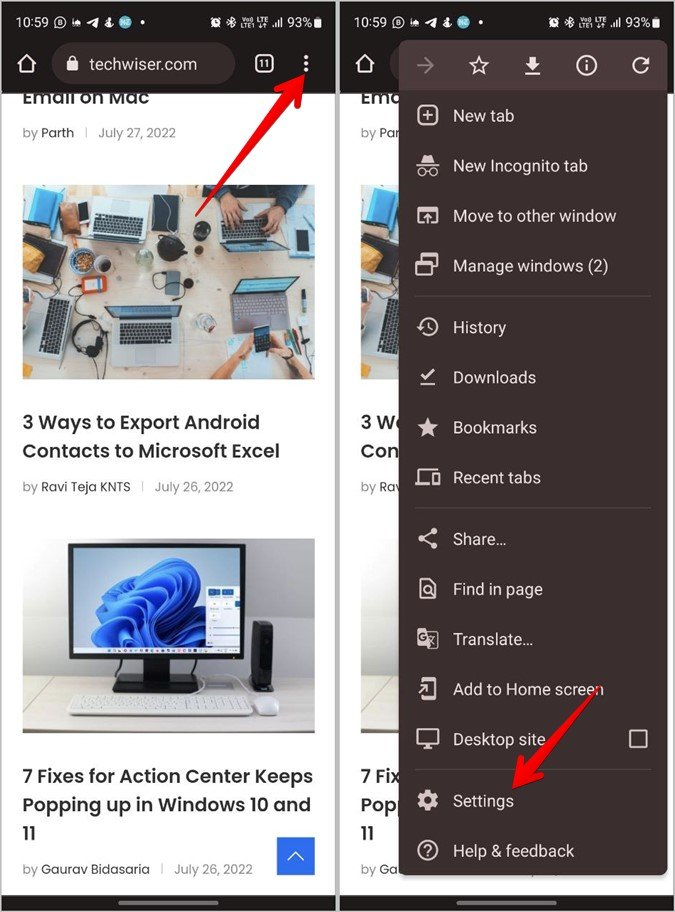
- Tap the three-dot icon in the top-right corner and select Settings.
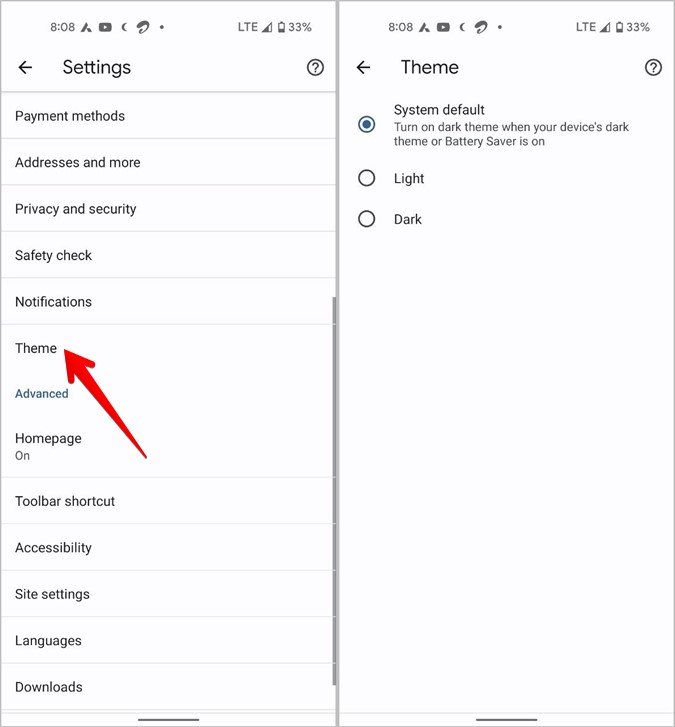
- Go to Theme and select Light theme.
Tip: If your entire device is set to dark mode, disable it by navigating to:
- Settings > Display > Theme, then select Light.

Turn Off Dark Mode on iOS
On iPhones or iPads, Chrome follows the system-wide appearance settings. To disable dark mode:
- Open the Settings app on your iPhone or iPad.
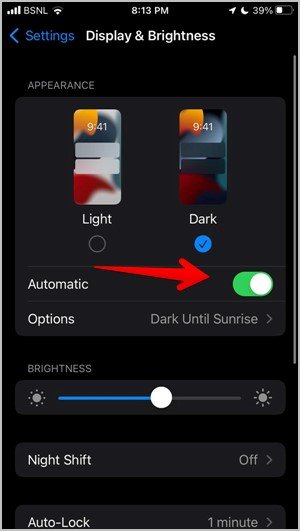
- Go to Display & Brightness.
- Under the Appearance section, select Light and ensure the Automatic toggle is off.
Turn Off Dark Mode on Windows
- Open the Settings app on your Windows PC.
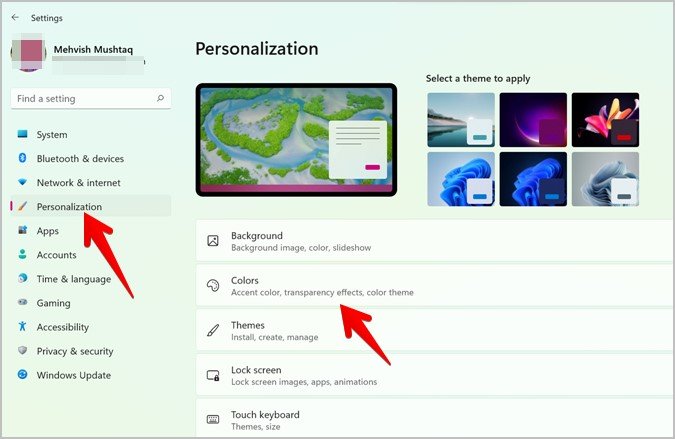
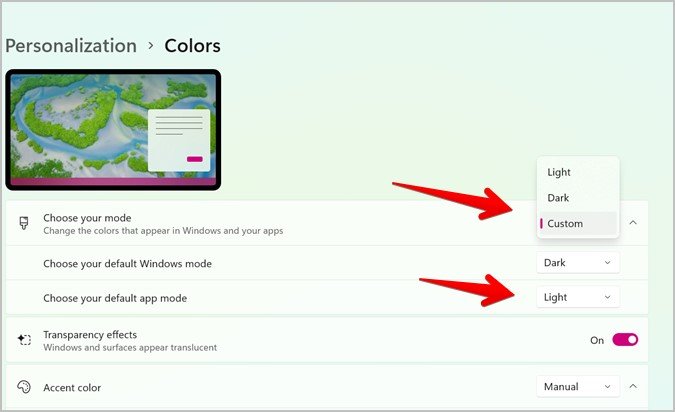
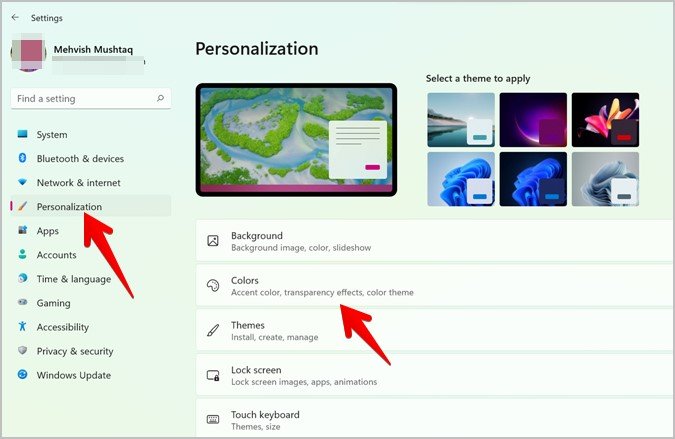
- Navigate to Personalization > Colors.
- Under the Choose your mode drop-down menu, select Light.
- Restart Chrome, and the default white theme will return.
Turn Off Dark Mode on Mac
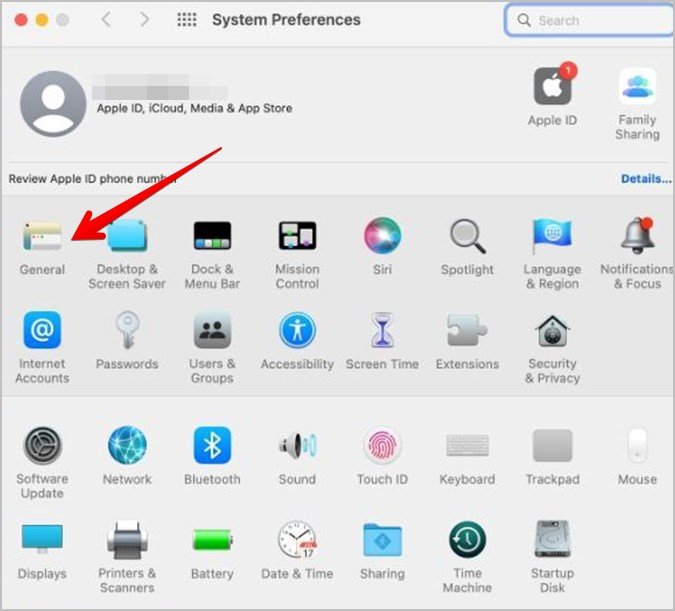
- Click the Apple icon in the menu bar and select System Preferences.
- Navigate to General.
- Under Appearance, select Light.
2. Change Chrome Theme
If the color of Chrome has changed due to a theme, you can reset it to the default theme.
How to Reset Chrome Theme on Windows and Mac
- Open Google Chrome on your computer.
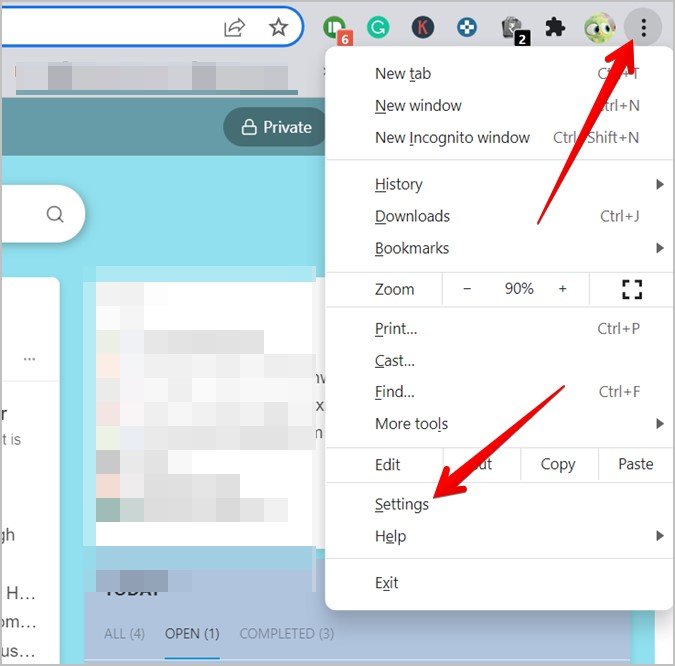
- Click the three-dot menu in the top-right corner and select Settings.
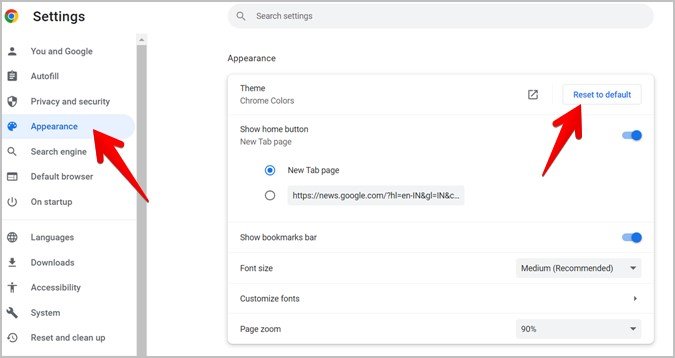
- Navigate to Appearance and click Reset to default under the Theme section.
Alternatively:
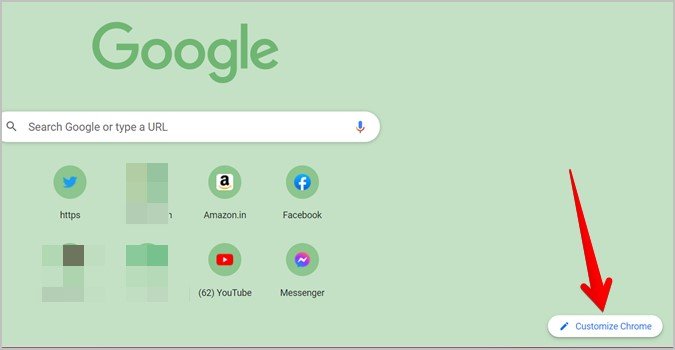
- Open the Chrome Start Page.
- Click Customize Chrome at the bottom of the page.
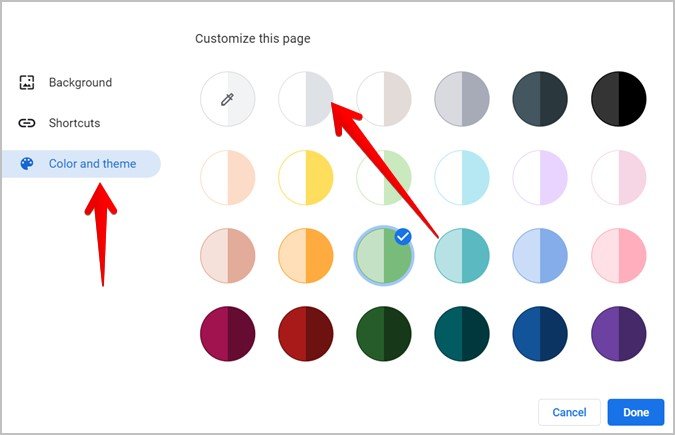
- Select Color and Theme.
- Choose the second color option to switch back to Chrome’s classic white appearance.

3. Turn Off Accent Color (Windows Only)
Windows allows customization of title bars with an accent color, which may affect Chrome. To revert to the default white:
- Open Settings and navigate to Personalization > Colors.
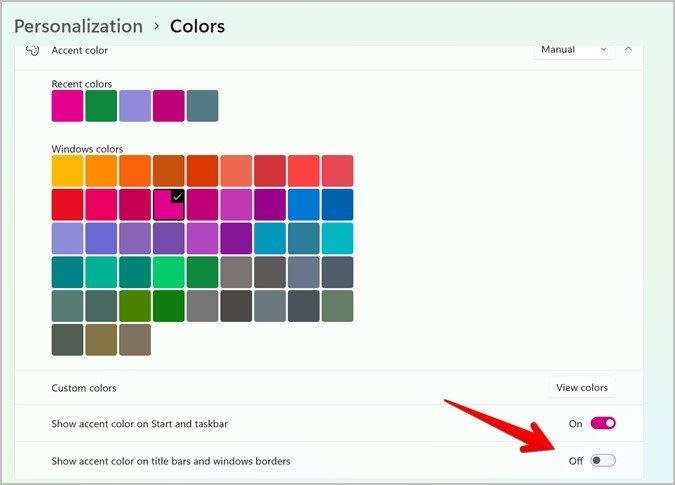
- Scroll down to the Accent color section.
- Disable the option for Show accent color on title bars and window borders.
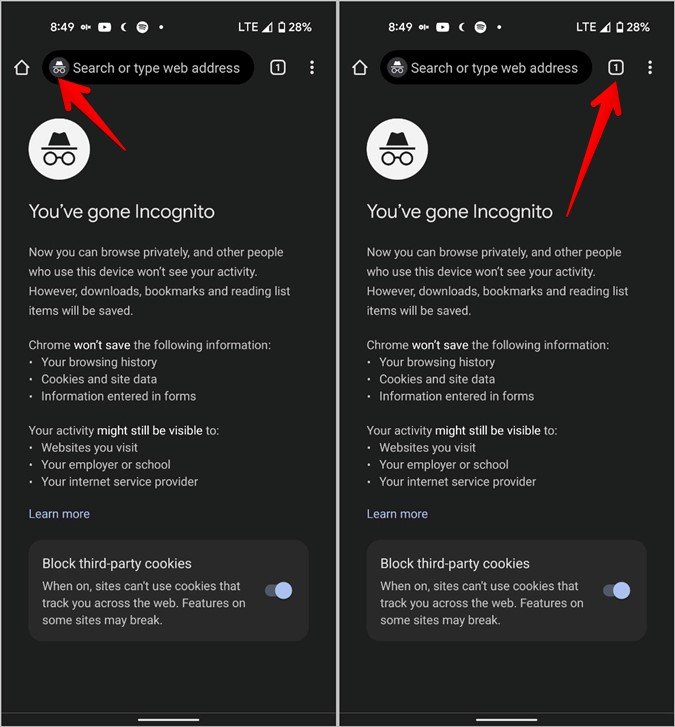
4. Exit Incognito Mode
Chrome’s incognito mode often uses a black theme. To exit:
- Windows/Mac: Close the window displaying the “Incognito” label in the top-right corner.
- Android/iOS: Look for tabs with the Incognito icon (hat and glasses) and close them.

5. Turn Off Dark Mode on Individual Websites
Some websites offer their own dark mode, which can make Chrome appear black. Check for a dark mode toggle on the website and disable it.
6. Reset Chrome Settings
If the above solutions don’t work, you may need to reset Chrome to its original settings. This will remove themes, extensions, and other customizations.
- Open Chrome and go to Settings.
- Scroll down and click Advanced.
- Under Reset and clean up, click Restore settings to their original defaults.
- Confirm the reset.
FAQs: Common Questions About Chrome’s Appearance
1. Why has Google Chrome turned black?
Google Chrome may turn black due to settings like dark mode, a custom theme, or incognito mode.
2. How do I disable dark mode on Chrome for Android?
Go to Settings > Theme in Chrome and select Light theme. If the system-wide dark mode is on, disable it under Settings > Display > Theme.
3. How can I reset a Chrome theme on Windows or Mac?
Navigate to Settings > Appearance in Chrome and click Reset to default under the Theme section.
4. What is the accent color in Chrome on Windows?
The accent color in Windows changes the title bar color. To revert it, turn off accent colors in Settings > Personalization > Colors.
5. Can Chrome’s appearance change because of specific websites?
Yes, some websites apply their own dark mode. Look for a toggle within the site to disable this feature.

Conclusion
When Google Chrome appears black or shows an unexpected color, it’s typically caused by settings such as dark mode, themes, or incognito mode—not by a virus or malware. By following the steps outlined for your device, you can easily restore Chrome’s default white appearance. If none of these solutions work, resetting Chrome will resolve most issues and return it to its original state.